WIDGETS · TIKTOK
Create a TikTok feed
Show your latest TikToks on your website as vertical video tiles. Connect your TikTok account once and new videos appear by themselves. About 4 minutes.
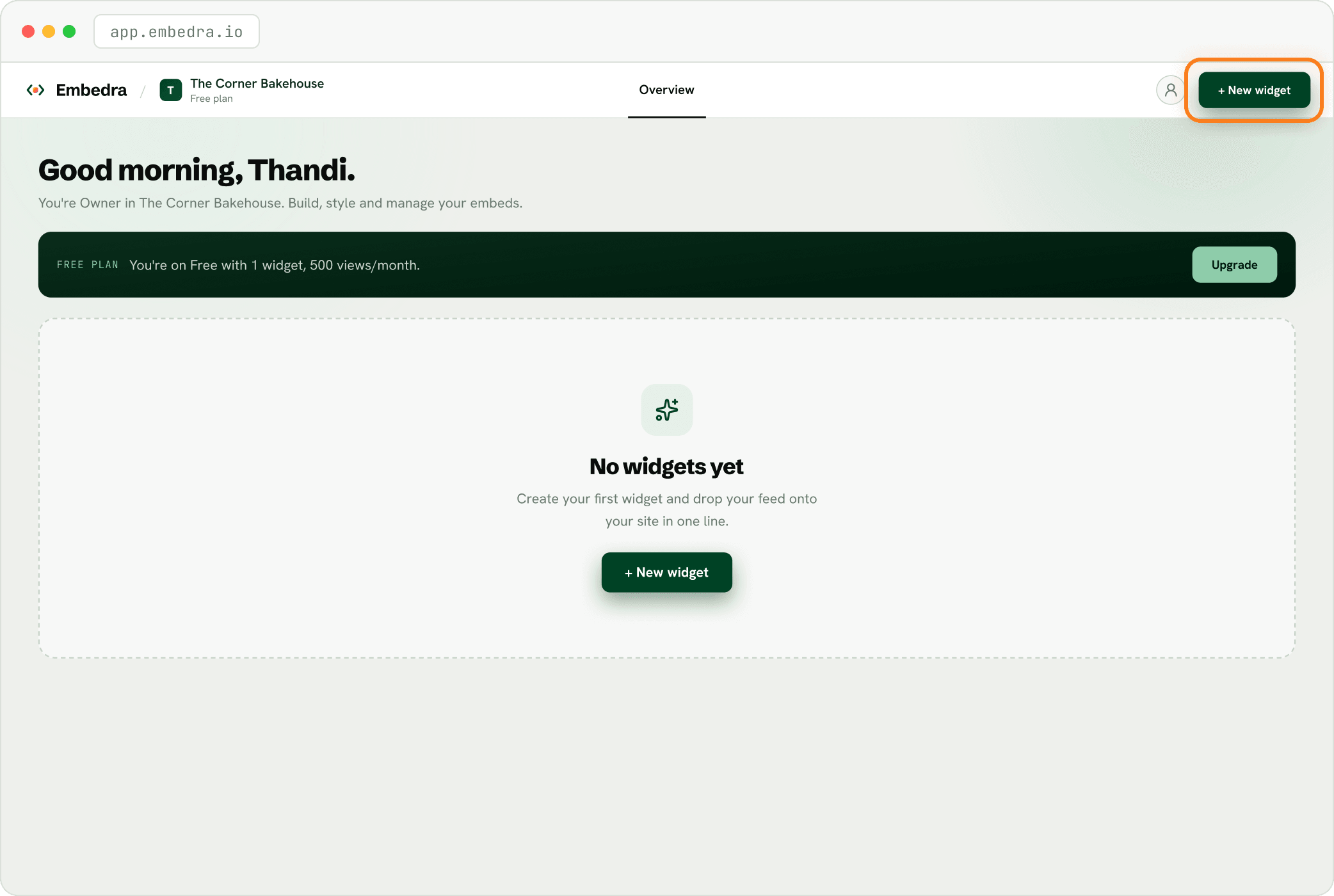
Click "+ New widget"
Sign in at app.embedra.io. On your dashboard, click "+ New widget" at the top. A window called "Add a widget" opens.
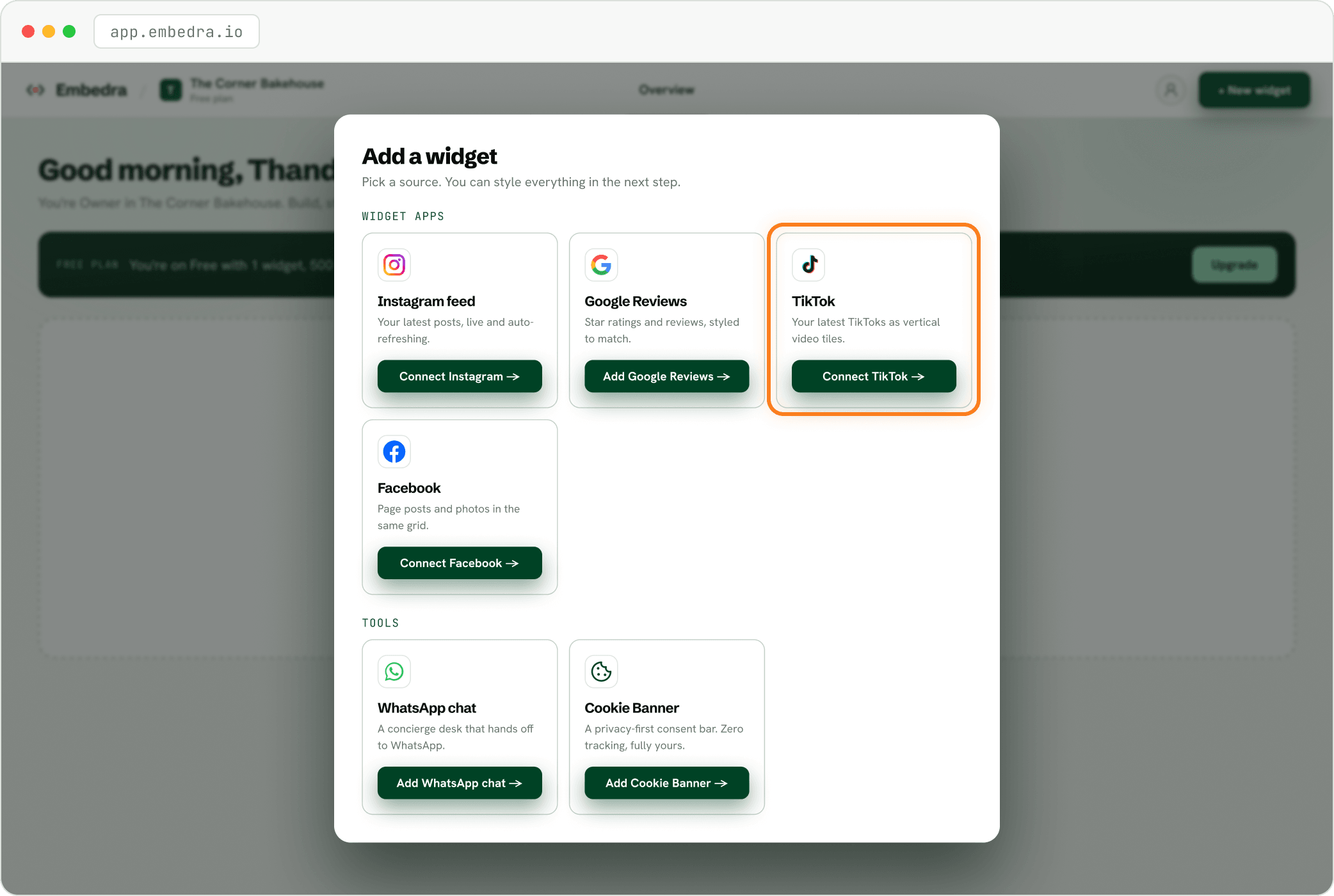
Pick "TikTok"
Find the TikTok card and click "Connect TikTok →".
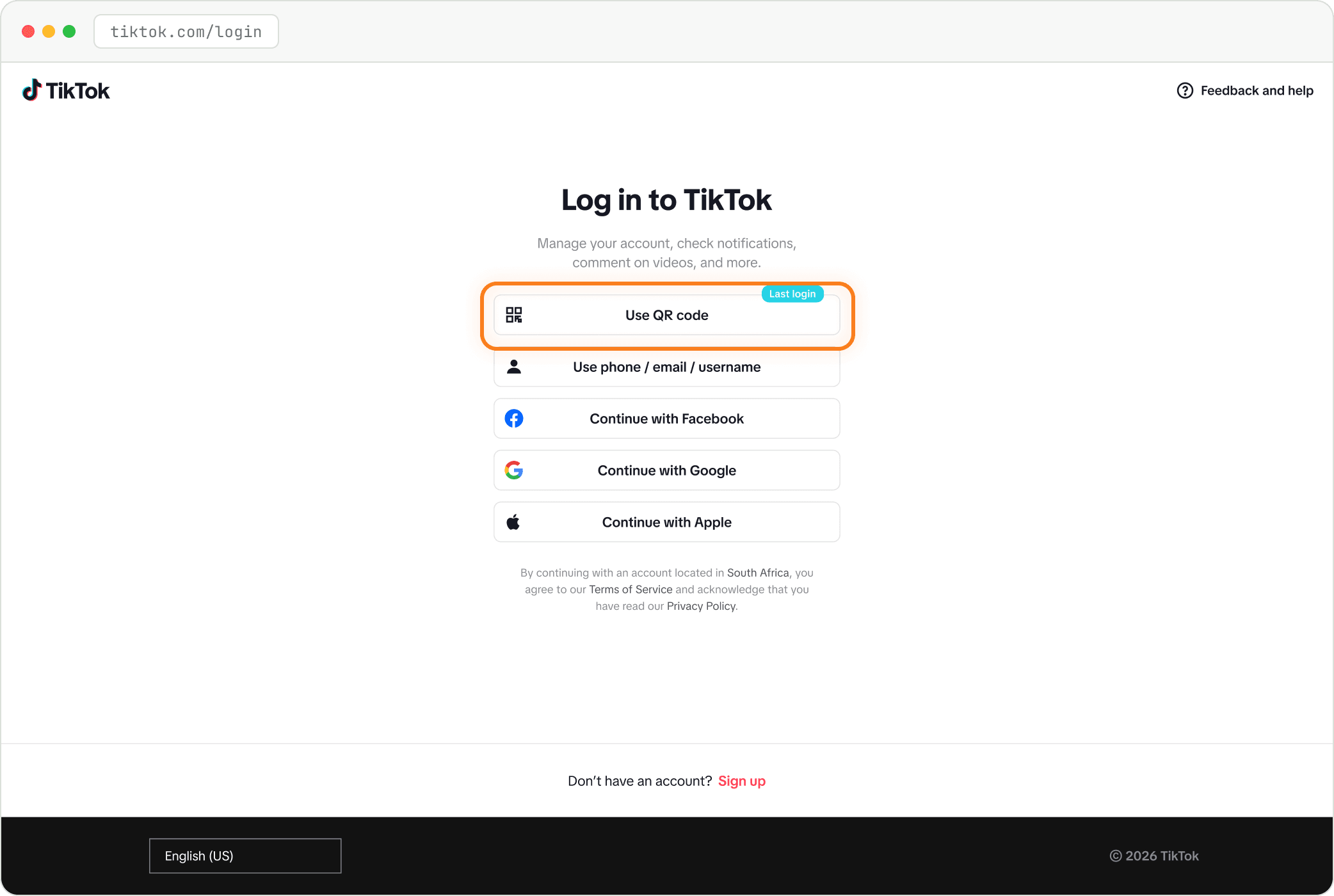
Log in to TikTok
TikTok opens its own login page. The quickest way is "Use QR code" with the TikTok app on your phone; email, Google, Apple and Facebook work too. Embedra never sees your password.
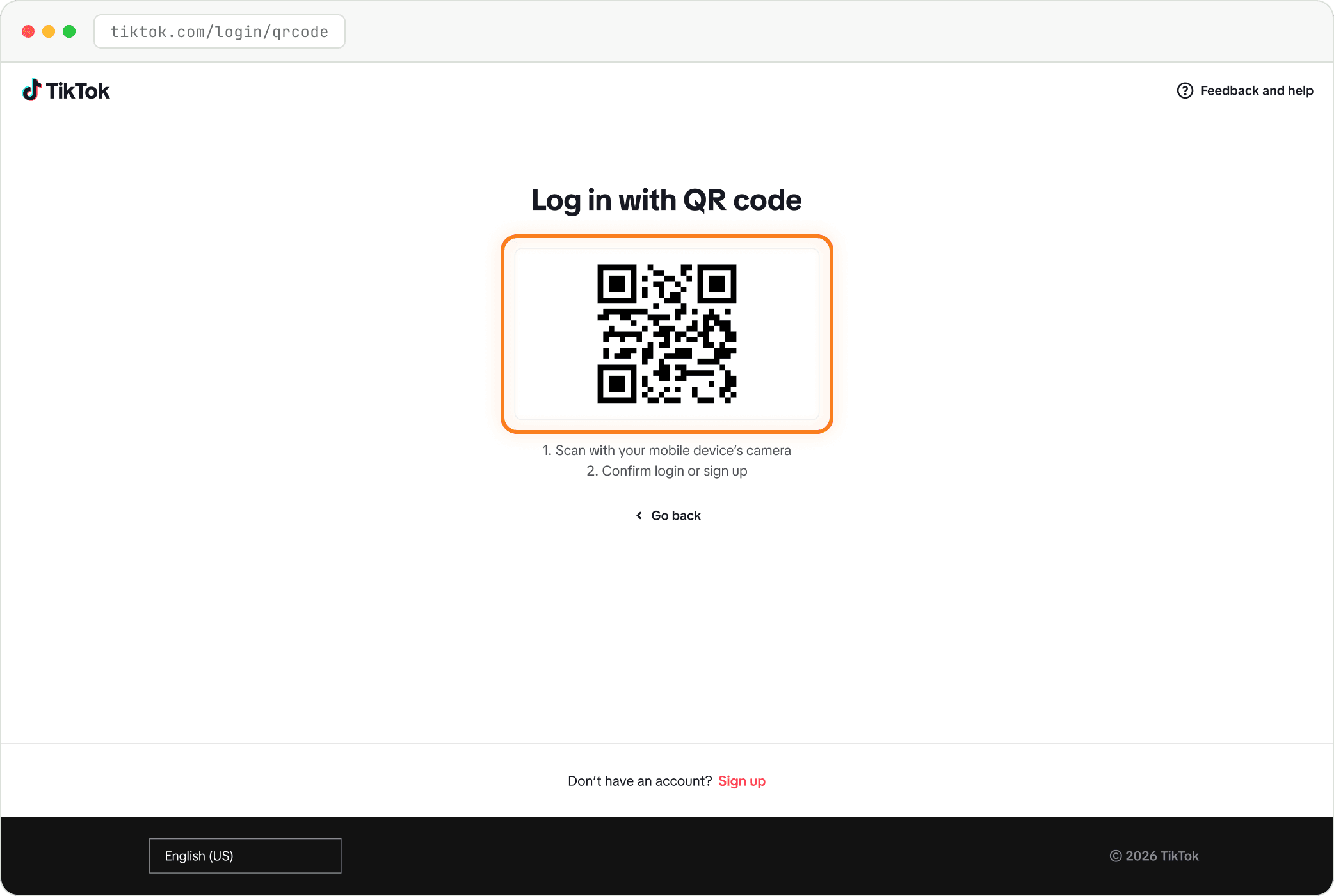
Scan the QR code with your phone
Open TikTok on your phone, tap the scan icon, scan the code on screen and confirm the login on your phone.
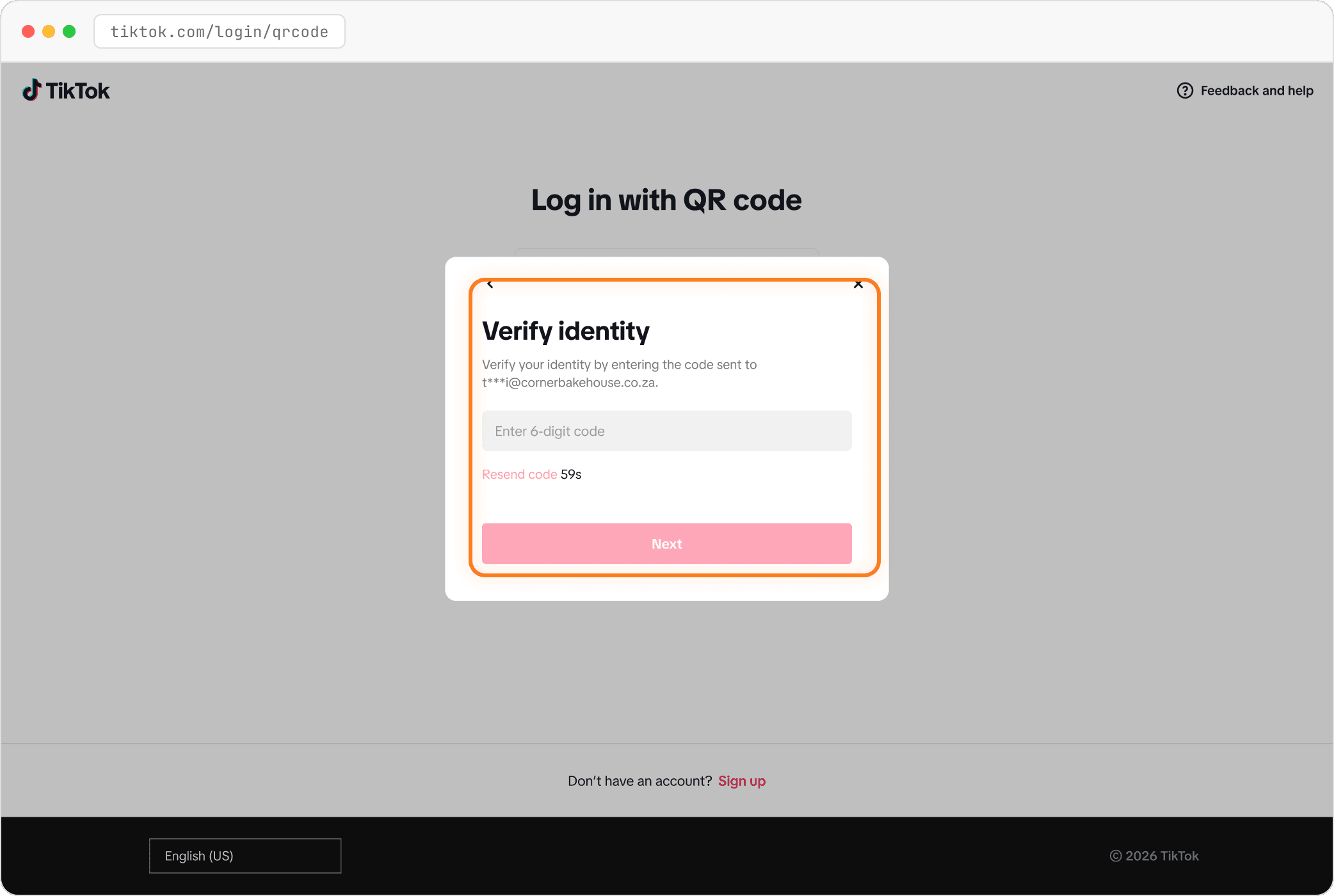
Enter the code, if TikTok asks
Sometimes TikTok sends a 6-digit code to your email to check it is you. Type it in and click "Next". If you are not asked, carry on.
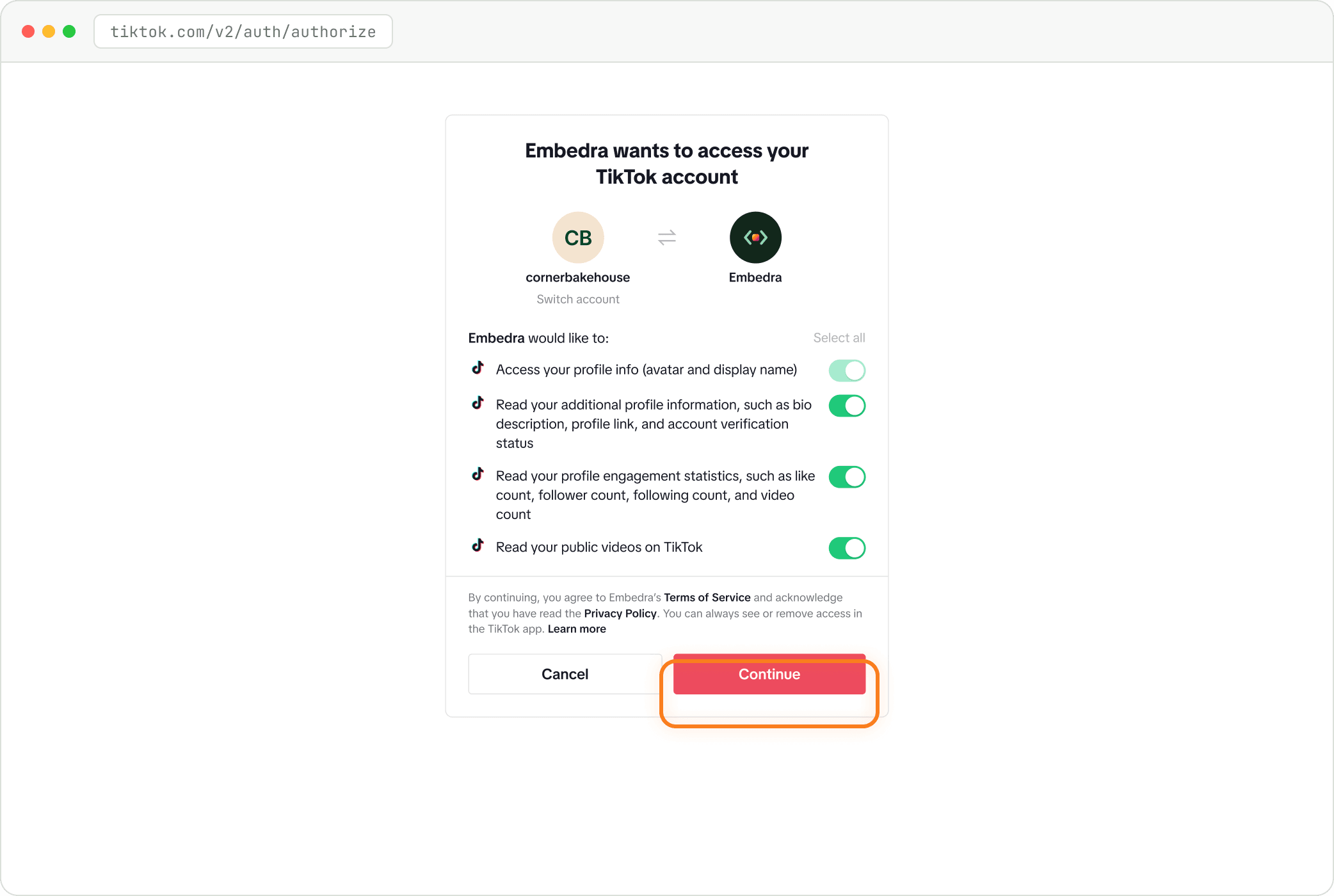
Allow Embedra, then click "Continue"
TikTok shows the four things Embedra will read: your profile info, your bio and profile link, your follower and like counts, and your public videos. Leave all four switched on, or the widget cannot show them. Click "Continue".
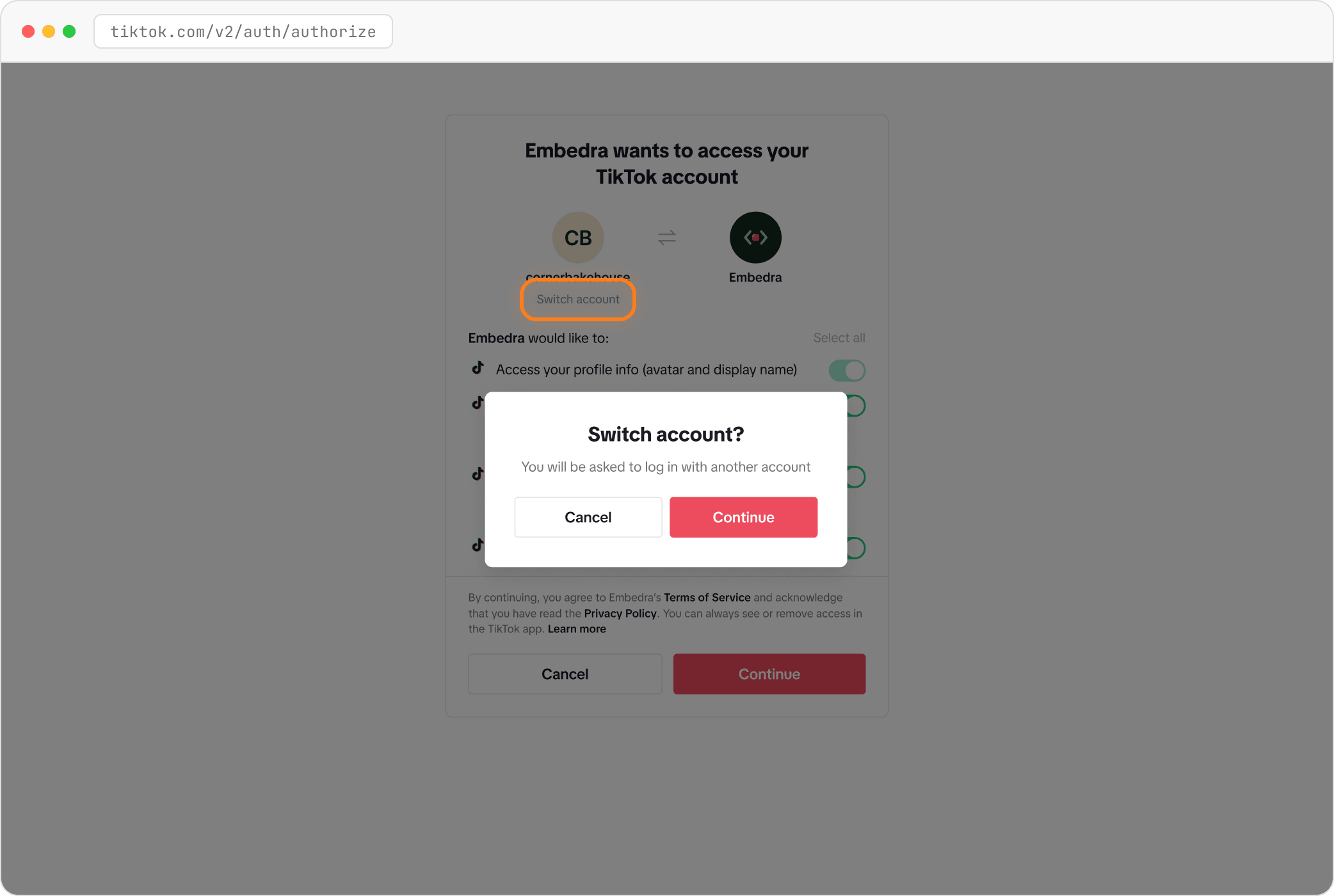
Wrong account? Click "Switch account"
The permission screen names the TikTok account this browser is logged into. If it is not the account whose videos you want to show, click "Switch account" under the name. TikTok asks "Switch account?": click "Continue", log in with the other account, and the permission screen comes back for that account.
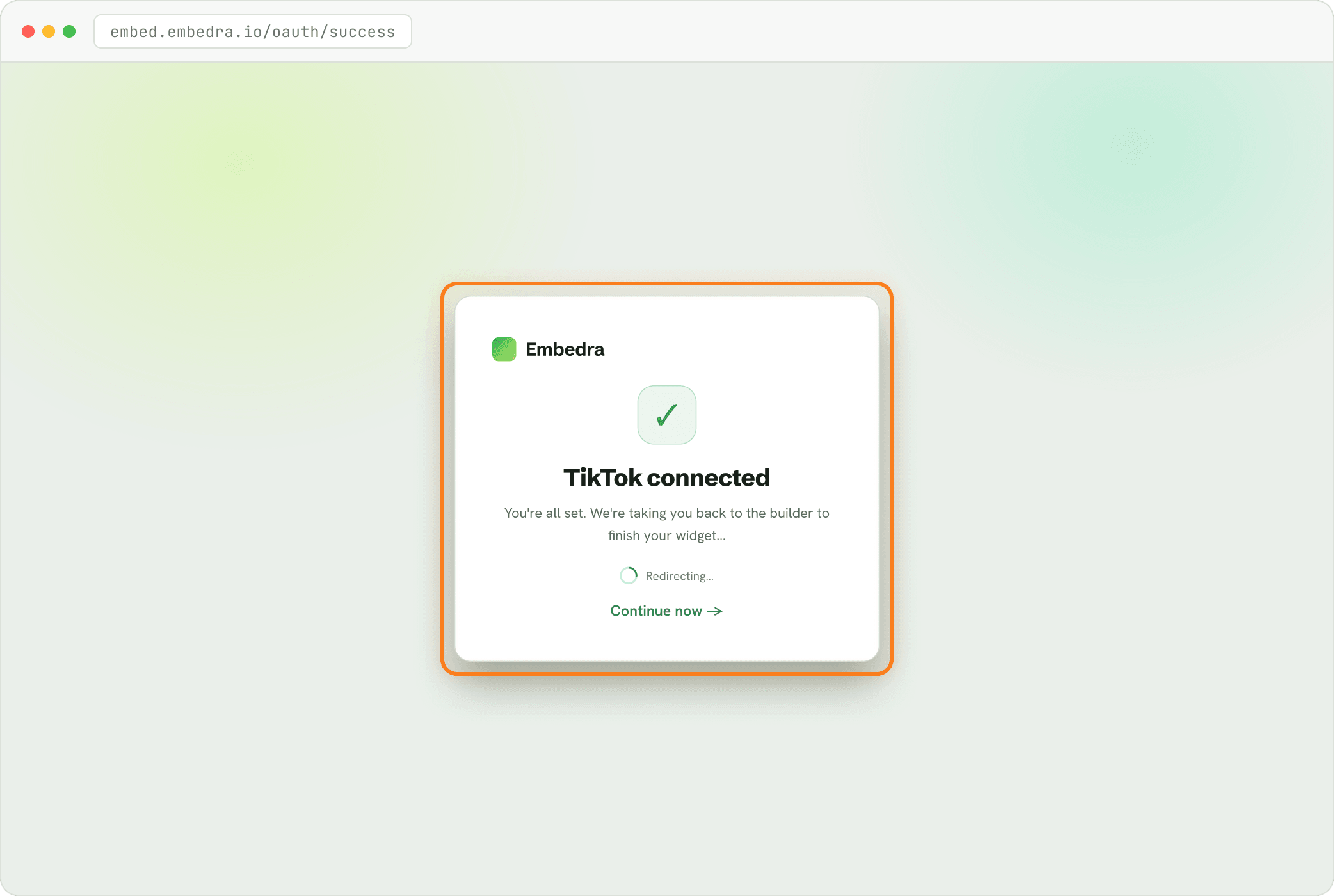
You are connected
You see "TikTok connected", then you land back in the builder. Your widget is called "TikTok videos".
Choose a look
Under FORMAT, pick Carousel, Vertical Reel, Video Grid, Spotlight, Chronological Ledger, Infinite Marquee, Dual Marquee or Profile Card.

Check your account (optional)
Open Embed, then Source. "TIKTOK ACCOUNT" shows which account is connected. Use "↻ Refresh videos now" for a brand-new video, and the Video limit slider to show fewer.

Save, then copy your code
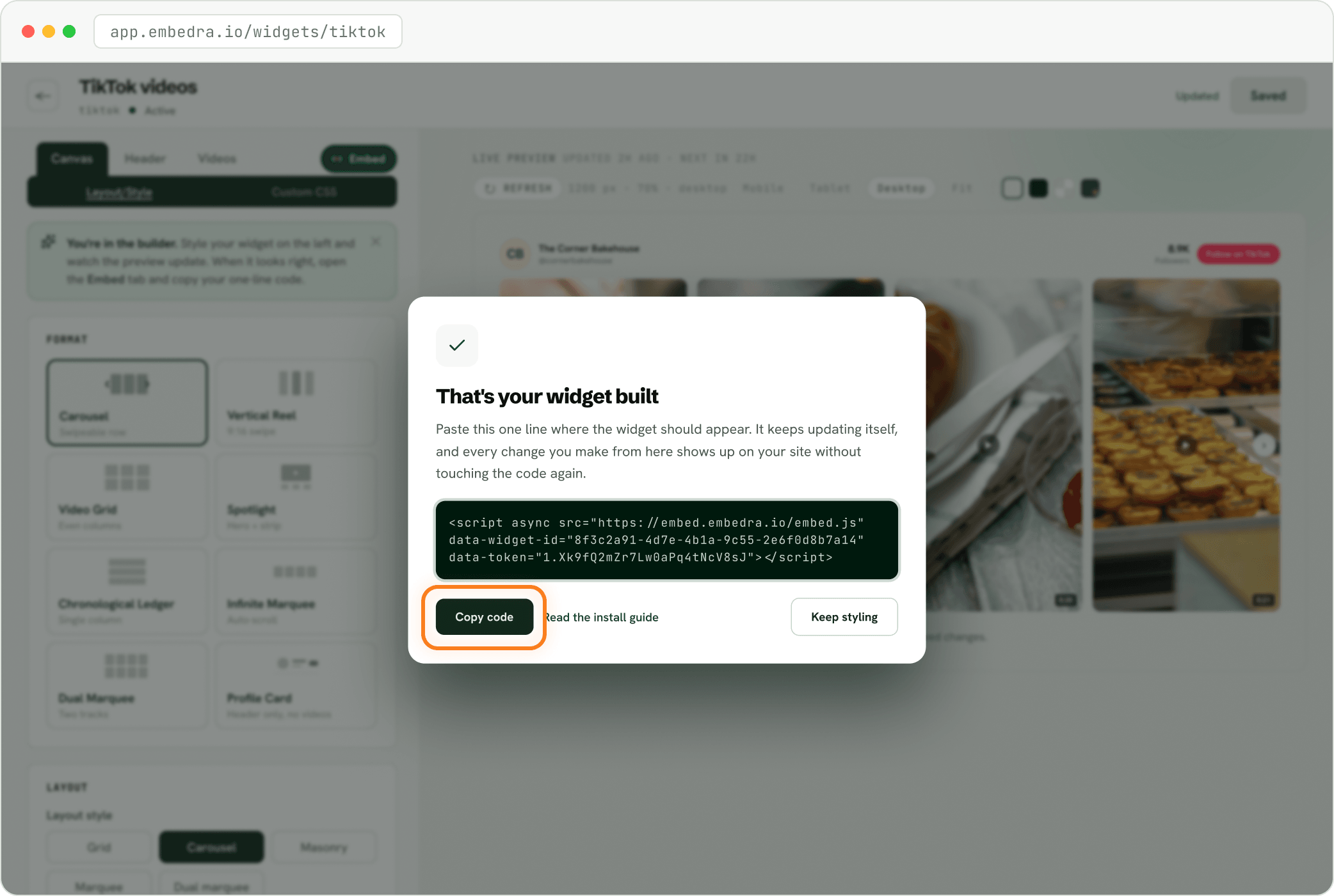
Click "Save changes" at the top right. The first time you save a new widget, "That's your widget built" opens. Click "Copy code": that one line is your whole widget. Next, follow the install guide for your website builder.
NEXT
Add your widget to your website →Where to paste your code in WordPress, Shopify, Webflow, Framer, Wix and more.
Need to switch accounts later, or fix a lapsed connection? Reconnect your TikTok widget.
Stuck on a step? Email support@embedra.io. A real person replies.