GETTING STARTED
Create your Embedra account
Sign up with your email or with Google, confirm your address, and name your workspace. It takes about two minutes and needs no card. About 2 minutes.
Open the sign-up page
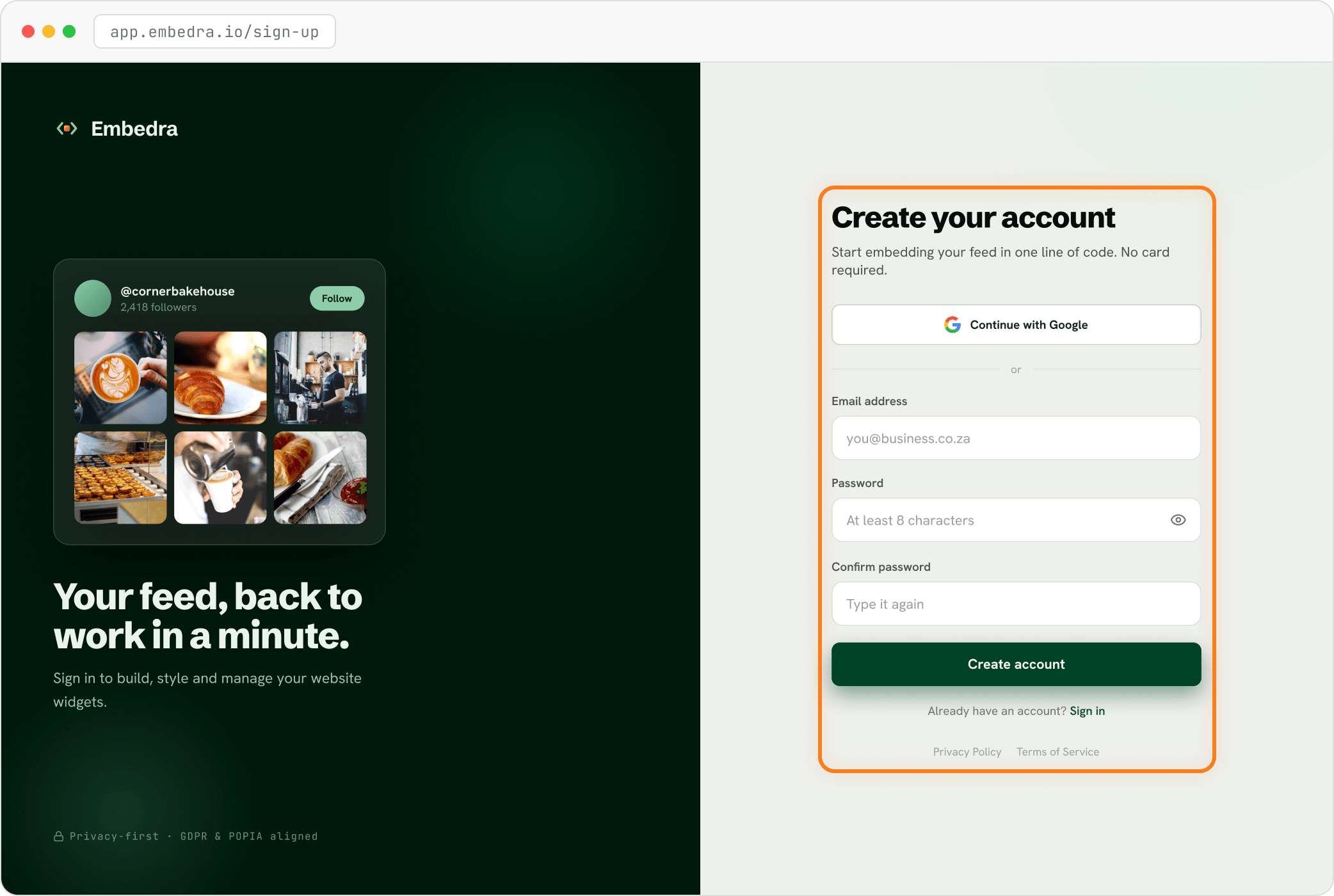
Go to app.embedra.io/sign-up. Enter your email address and a password of at least 8 characters, type the password again under "Confirm password", then click "Create account". Prefer Google? Click "Continue with Google" and pick your account instead.
- Tip
Signed up with Google?
You skip the next two steps. Google has already confirmed your email address, so you go straight to naming your workspace.
Check your inbox
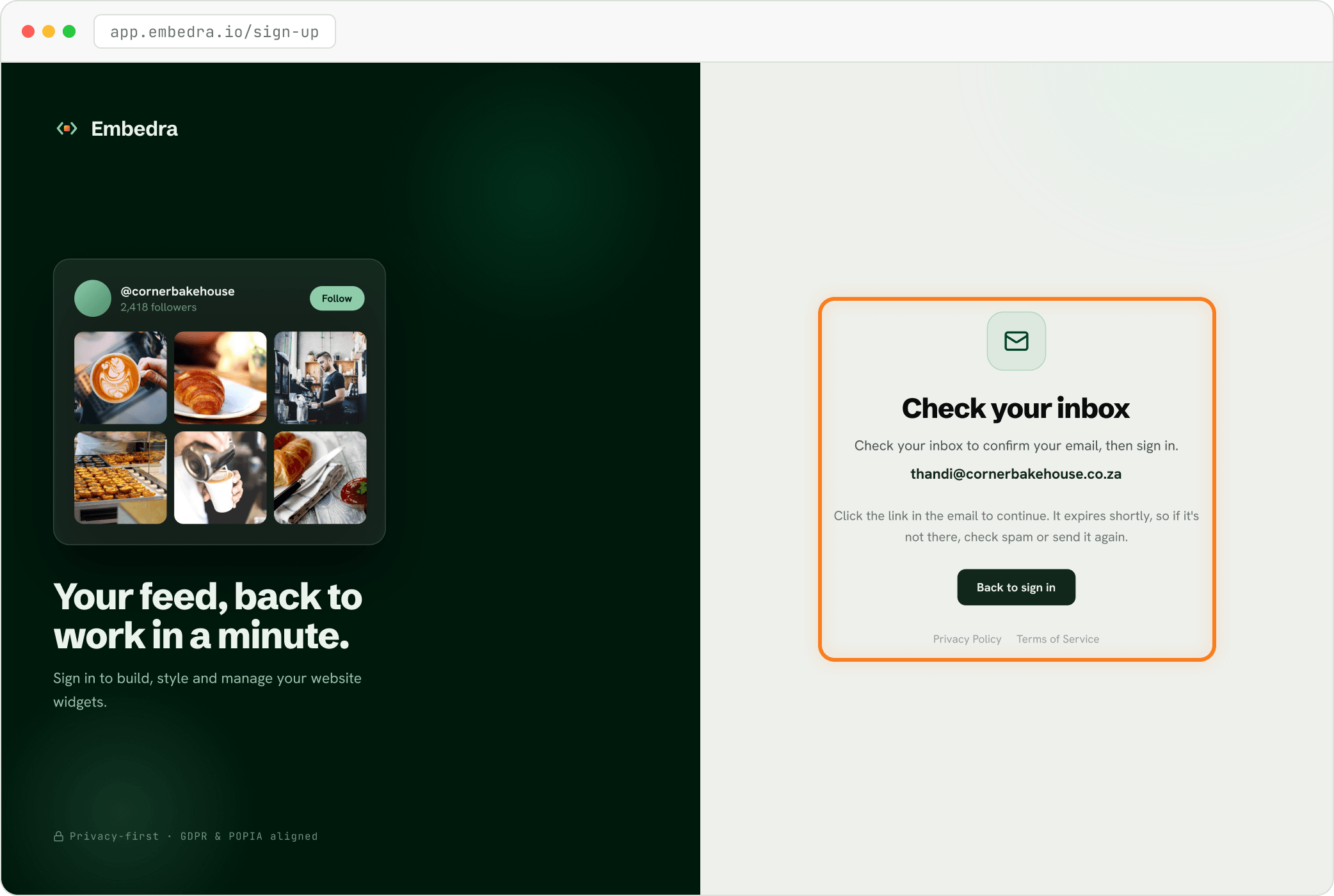
Embedra shows "Check your inbox" and sends a confirmation email to the address you entered.
Confirm your email
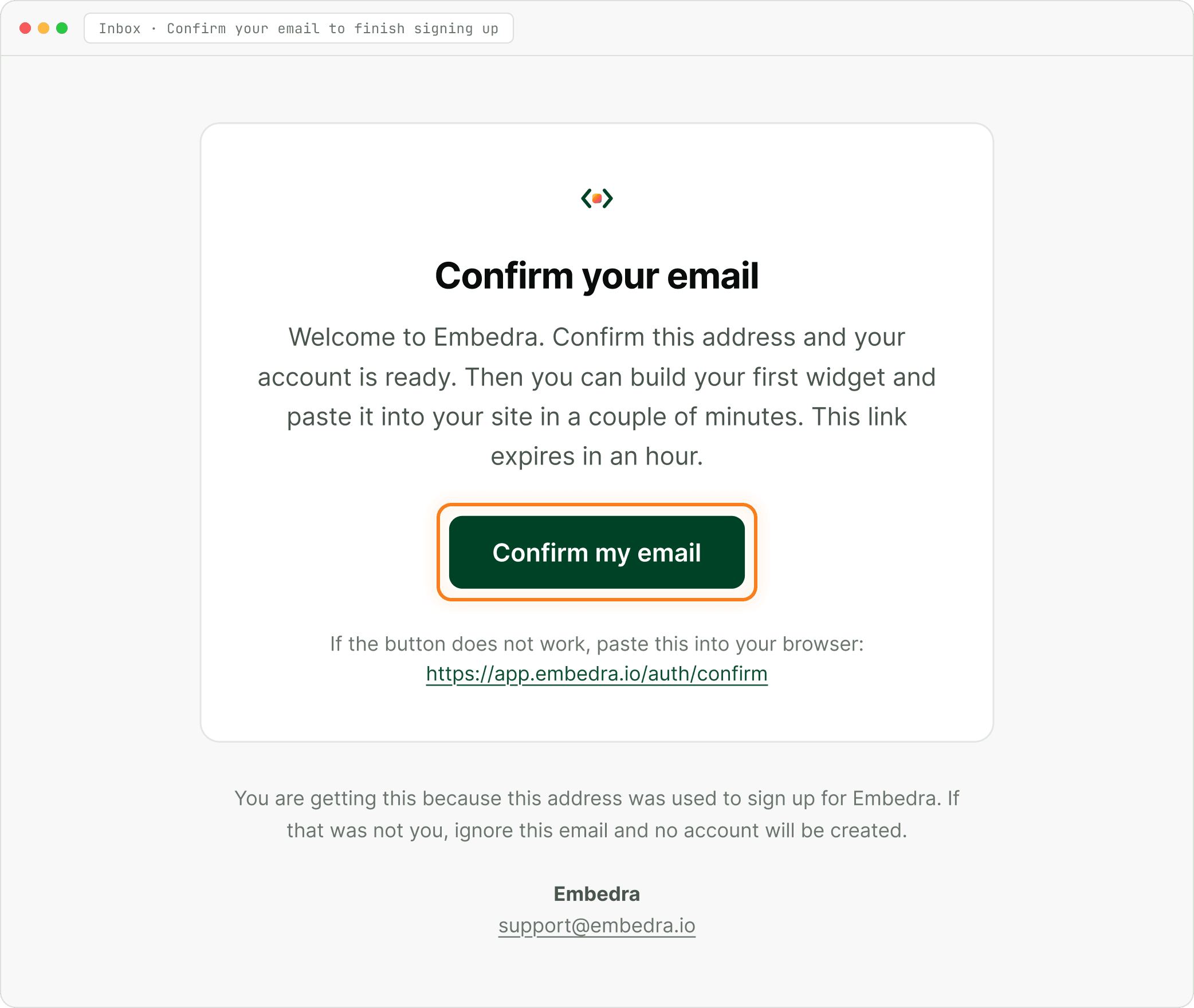
Open the email with the subject "Confirm your email to finish signing up" and click "Confirm my email". If the button does not work, the same link is in the email as plain text.
- Heads up
No email, or the link has expired?
Check your spam and promotions folders. The link expires after an hour. If it still has not arrived, write to support@embedra.io and a person will help.
Create your workspace
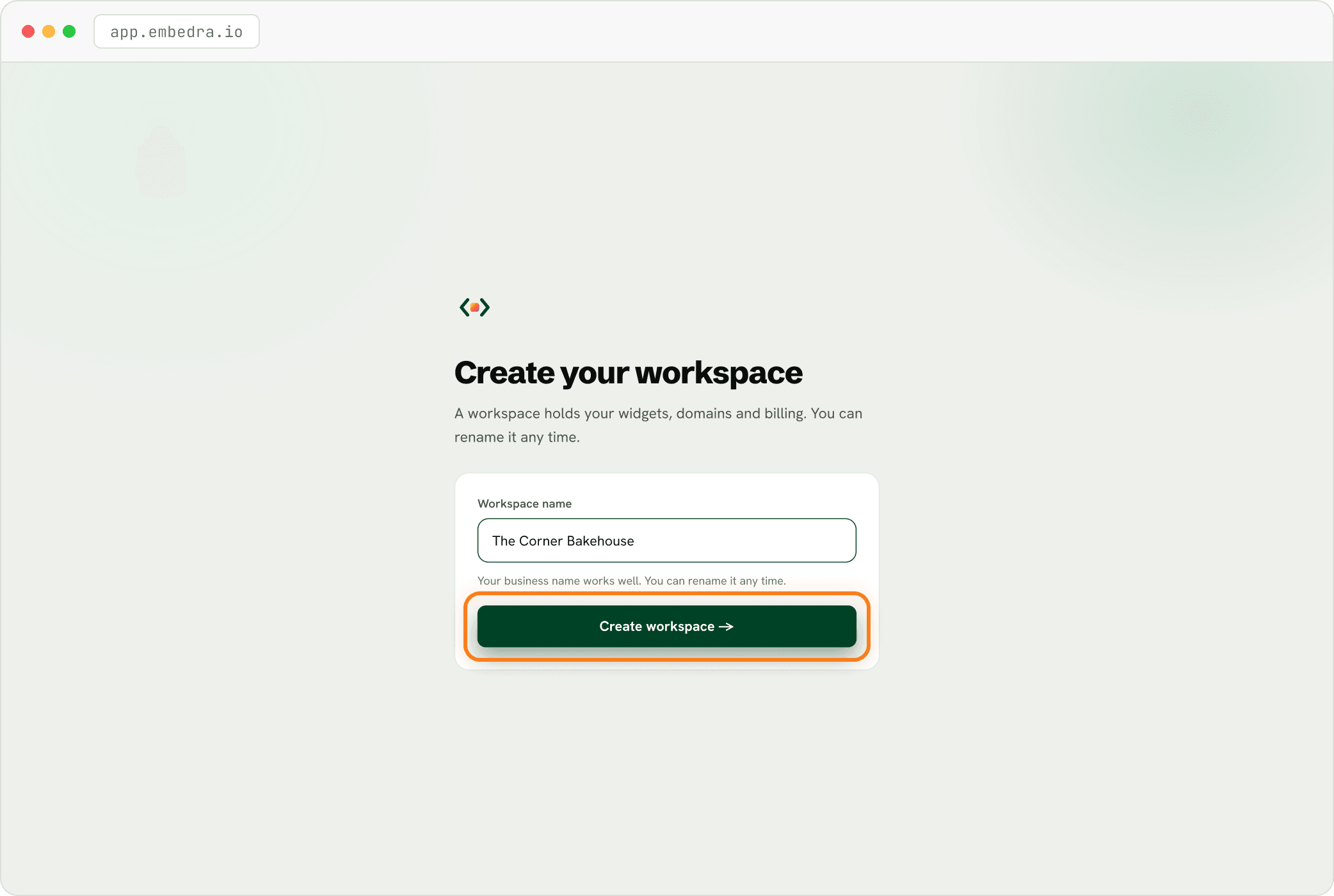
A workspace holds your widgets, domains and billing. Your business name works well, and you can rename it any time. Type it and click "Create workspace".
- Tip
Joining your team instead?
Sign up with the exact email address you were invited with. You join that workspace automatically and skip this step.
You are in
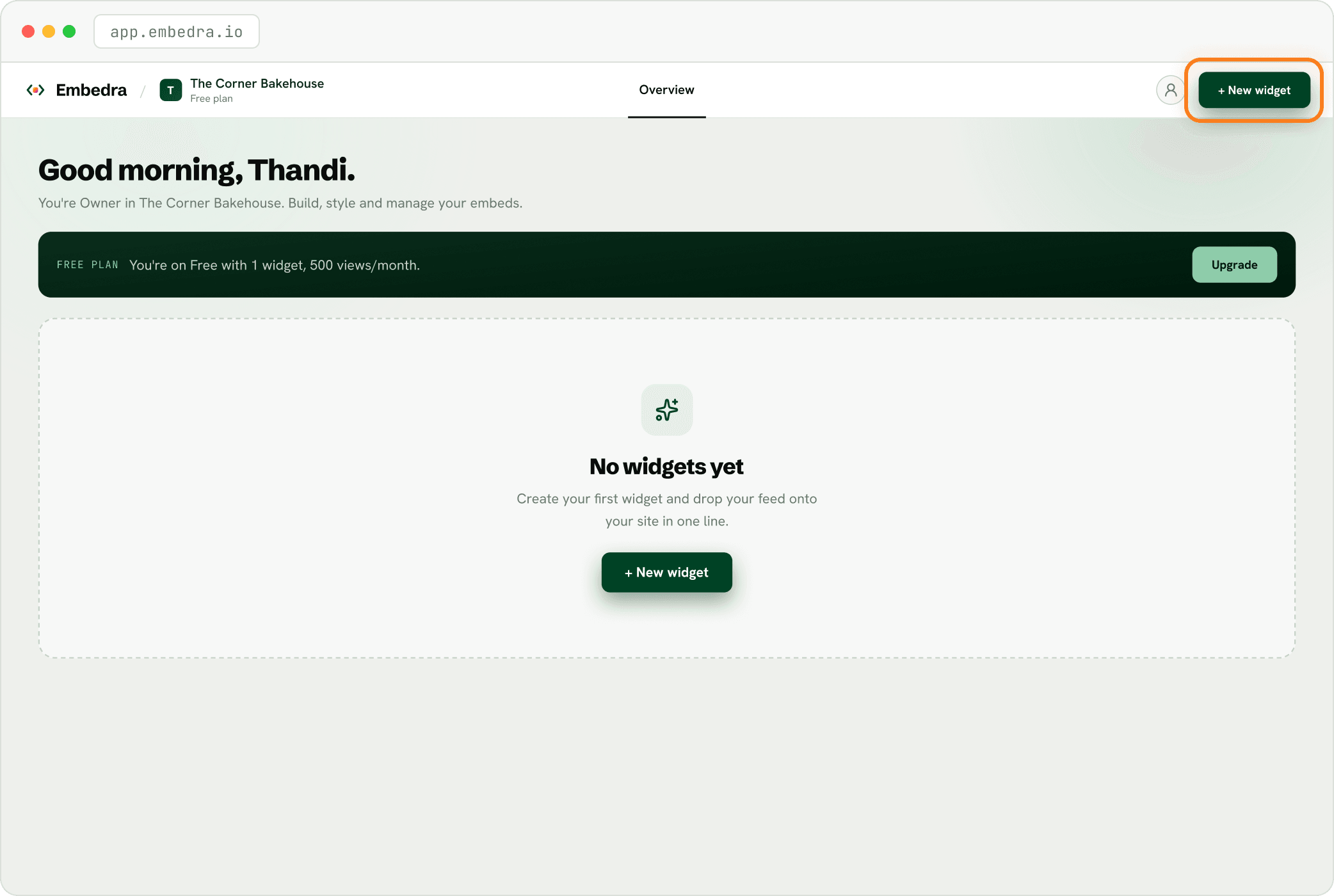
Your dashboard opens on the Free plan: 1 widget and 500 views a month. A welcome email is on its way too. When you are ready, click "+ New widget".
NEXT
Create your first widget →Pick a widget and follow its guide from the dashboard to your embed code.
GETTING STARTED · LOGGING IN LATER
Log in to Embedra
Three ways in: your password, your Google account, or a one-time link sent to your email. Forgot your password? That is at the end. About 2 minutes.
Sign in with your password
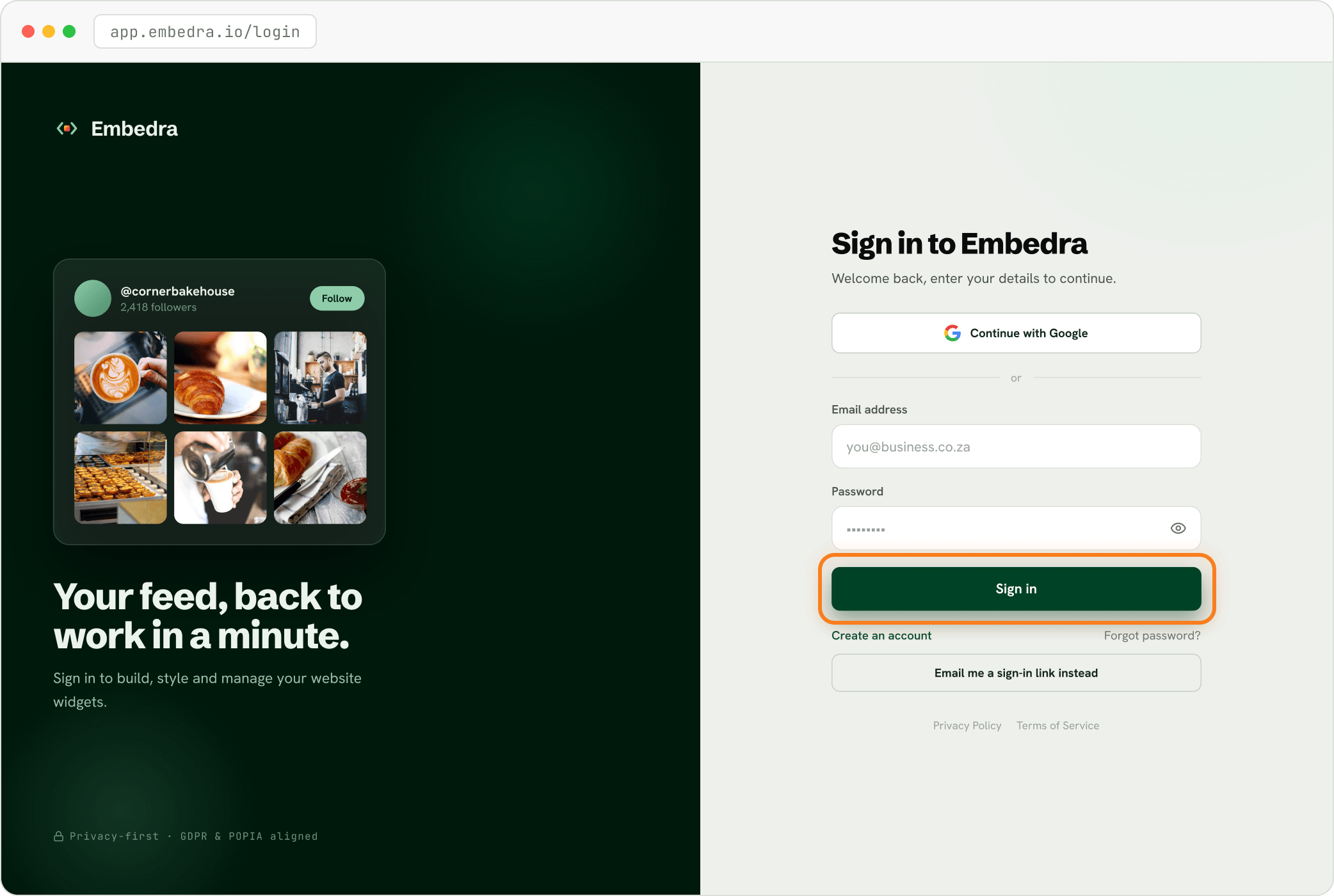
Go to app.embedra.io/login. Enter your email address and password, then click "Sign in". Use the eye icon to check what you typed.
Or continue with Google
If you signed up with Google, click "Continue with Google" on the same page and pick your account. There is no separate Embedra password to remember.
Or get a sign-in link by email
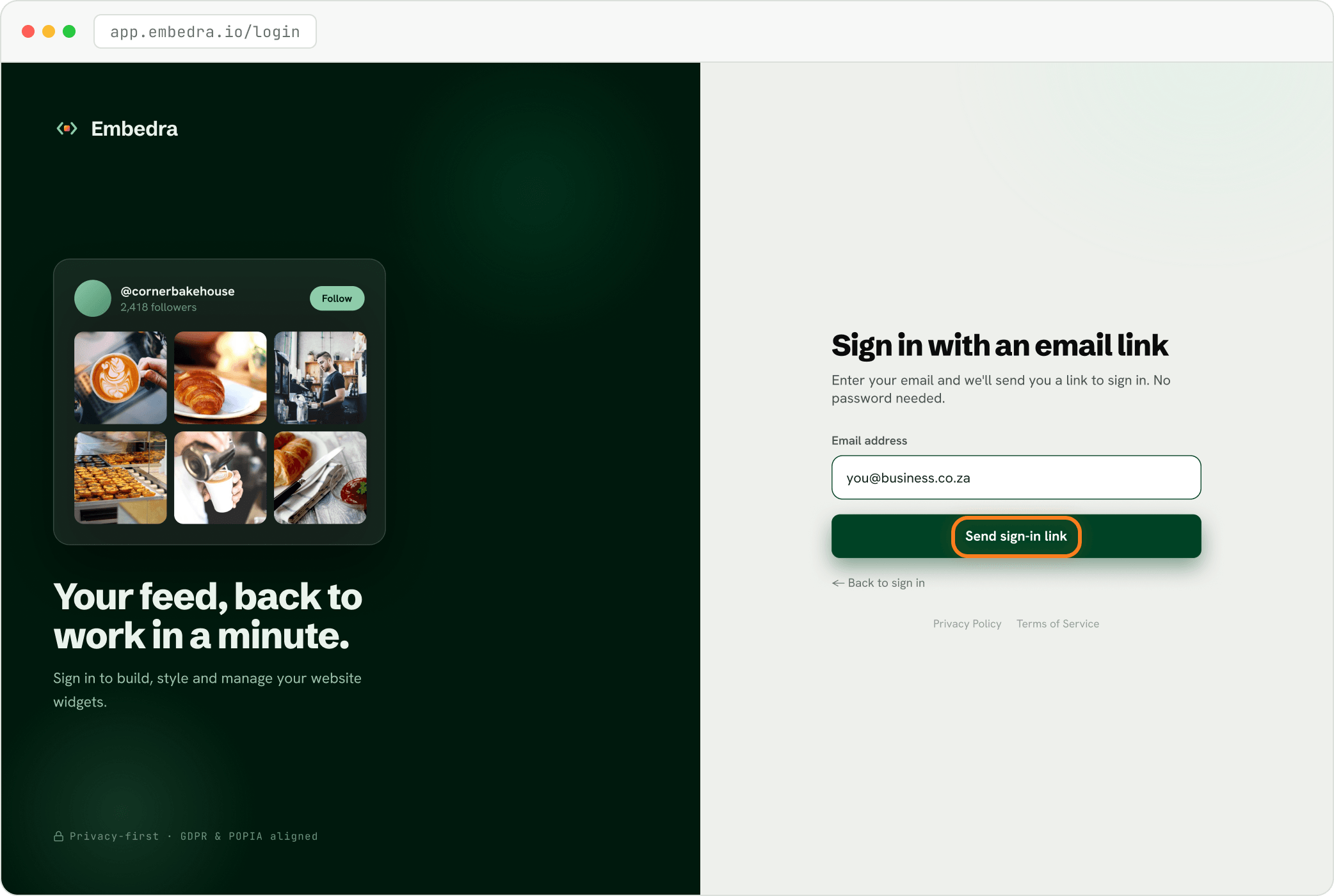
Click "Email me a sign-in link instead", enter your email and click "Send sign-in link". Open the email "Your Embedra sign-in link" and click "Sign in". The link works once and expires in an hour.
- Fix
"Wrong email or password."
Check for typos first. If you signed up with Google, use "Continue with Google" instead, because that account has no Embedra password. Still stuck? Reset your password below.
Forgot your password?
Two steps, and your old password keeps working until you finish.
Ask for a reset link
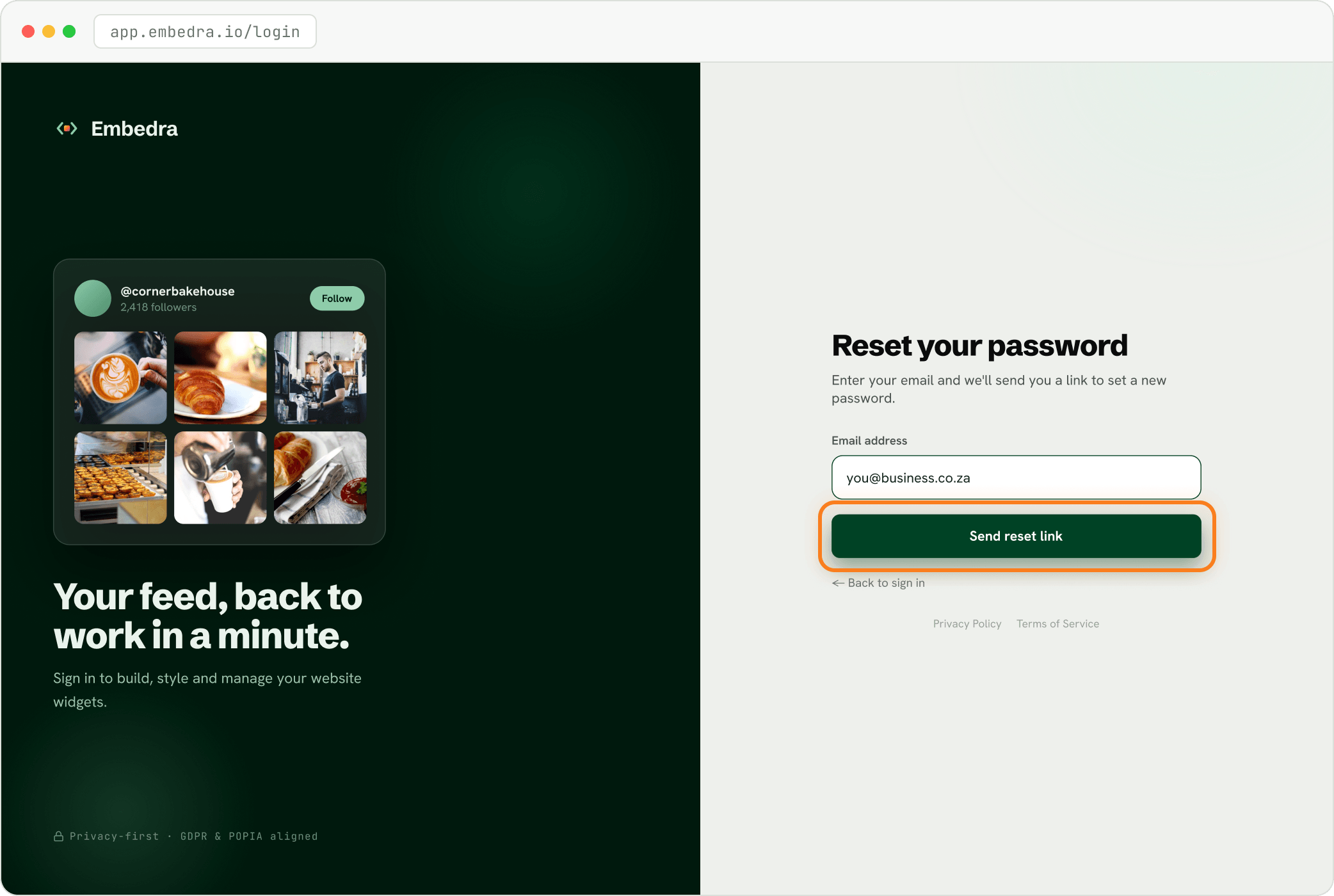
On the sign-in page, click "Forgot password?", enter your email address and click "Send reset link".
Choose a new password
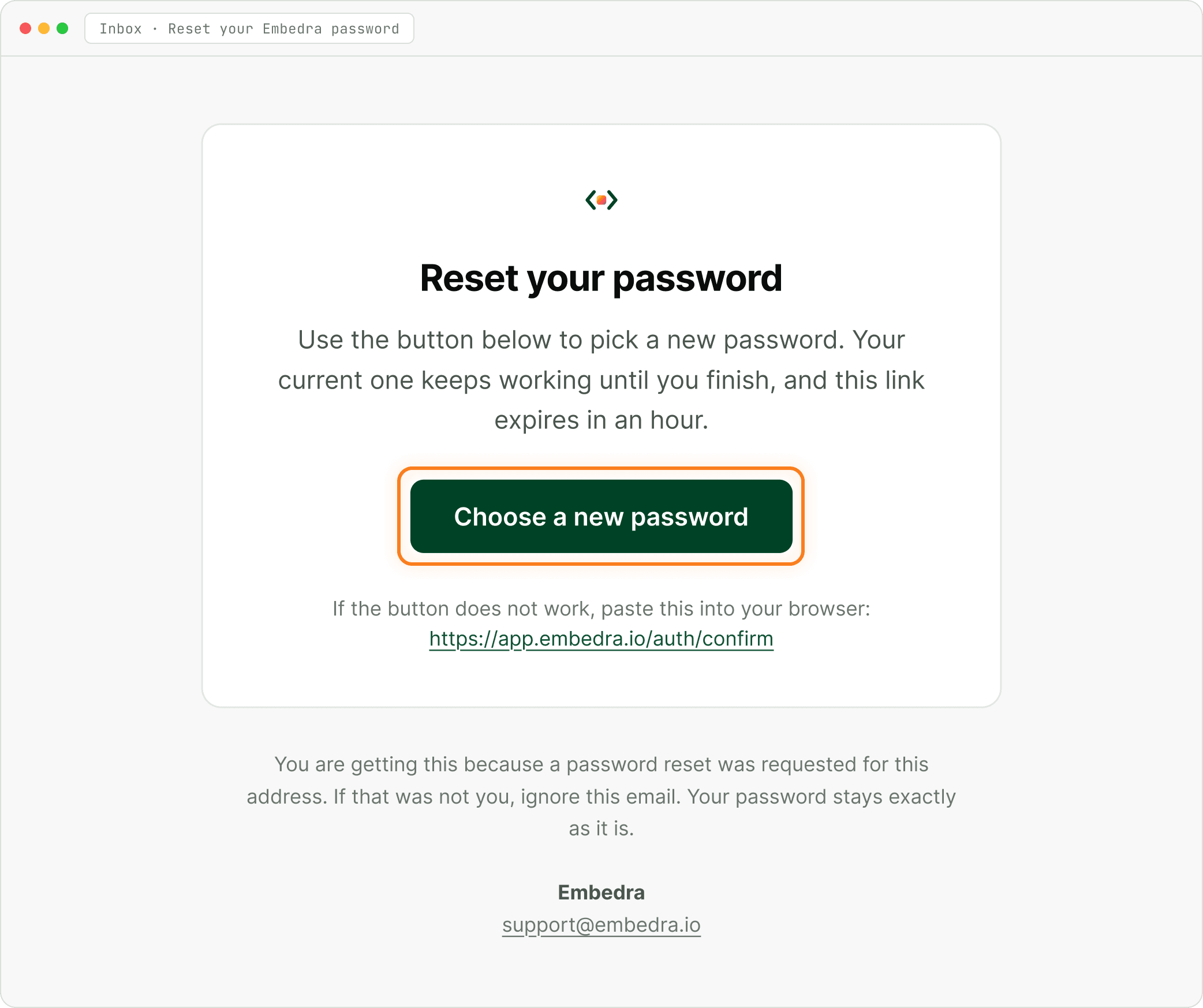
Open the email "Reset your Embedra password" and click "Choose a new password". Type your new password twice, at least 8 characters, and click "Save password".
- Heads up
Reset link says it is invalid or expired?
Links expire after an hour and work once. Go back to app.embedra.io/login and request a new one.
Still locked out? Email support@embedra.io. A real person replies.