WIDGETS · FACEBOOK
Create a Facebook feed
Show the latest posts from your Facebook Page on your website. Only a Facebook Page works, not a personal profile. About 5 minutes.
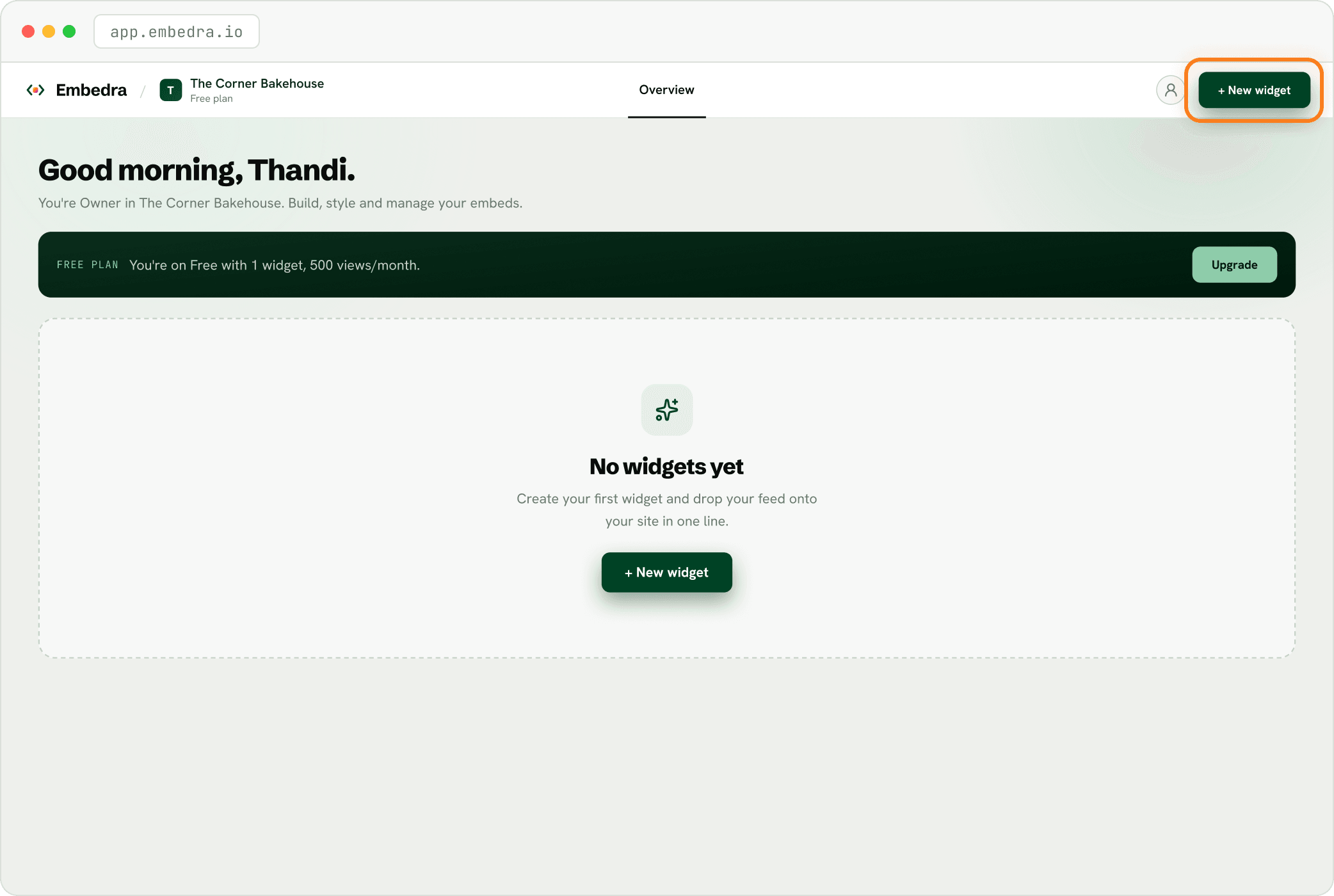
Click "+ New widget"
Sign in at app.embedra.io. On your dashboard, click "+ New widget" at the top. A window called "Add a widget" opens.
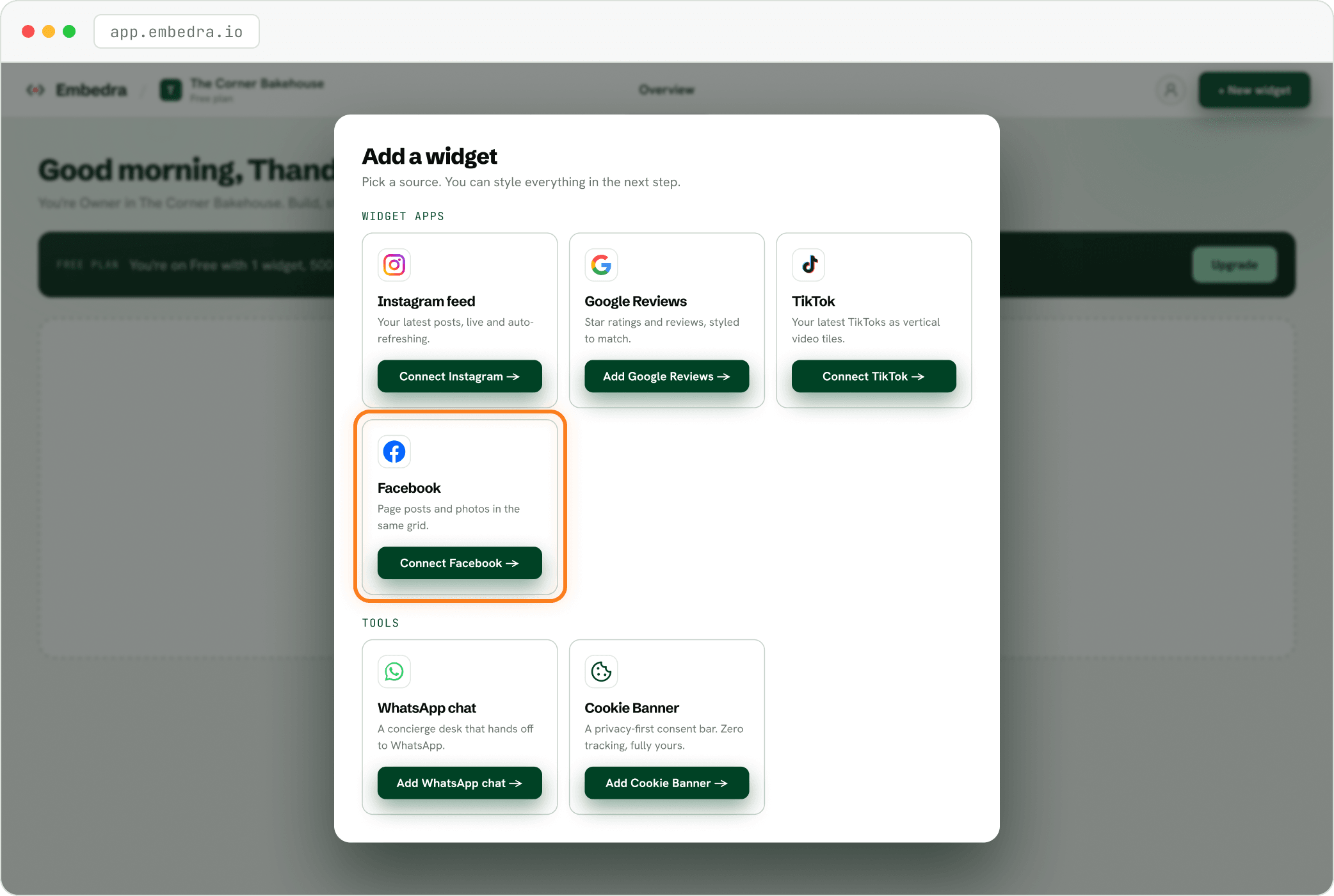
Pick "Facebook"
Find the Facebook card and click "Connect Facebook →".
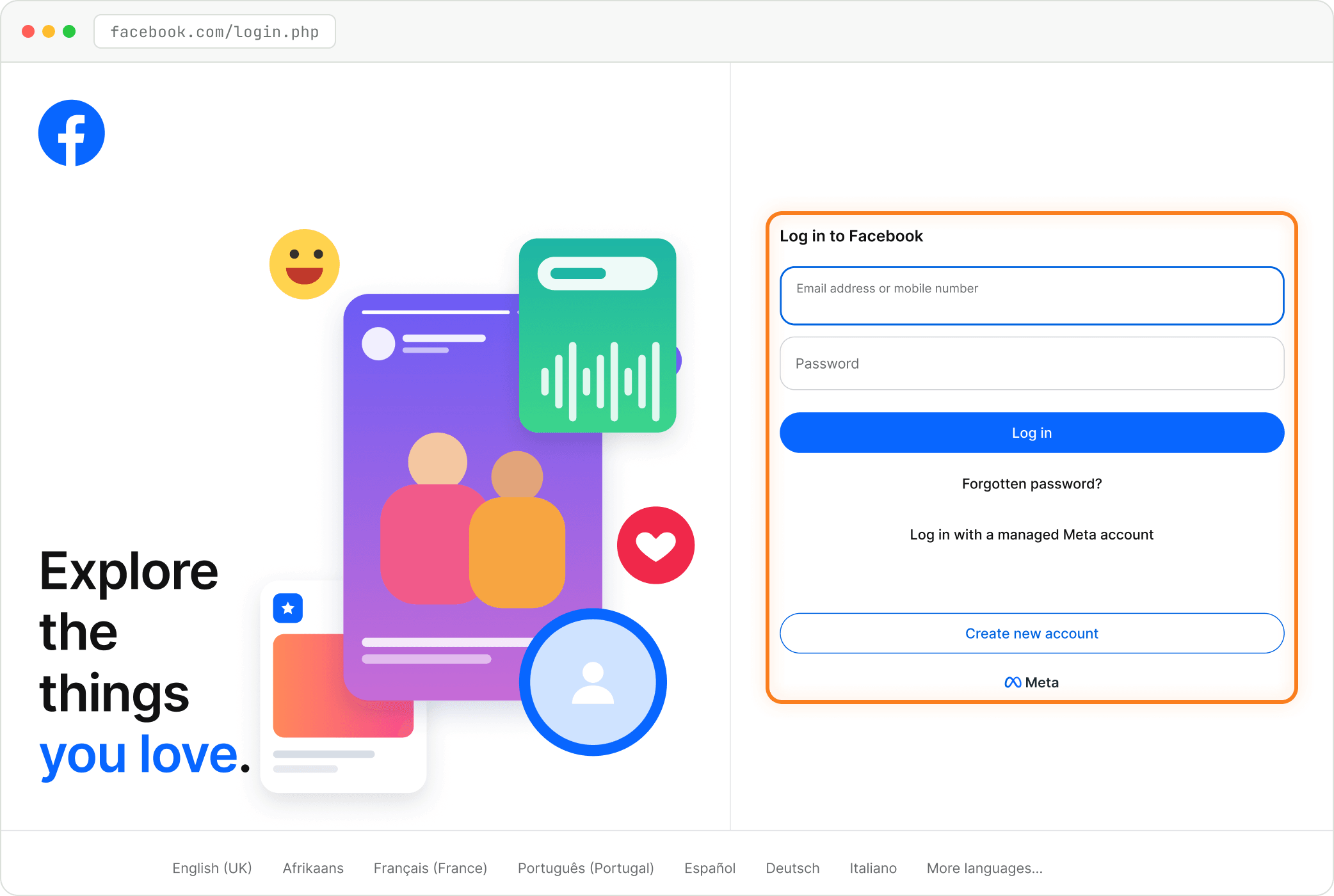
Log in to Facebook (only if you are logged out)
Already logged in to Facebook in this browser? Skip to the next step. Otherwise Facebook shows its own login page first. Embedra never sees your password.
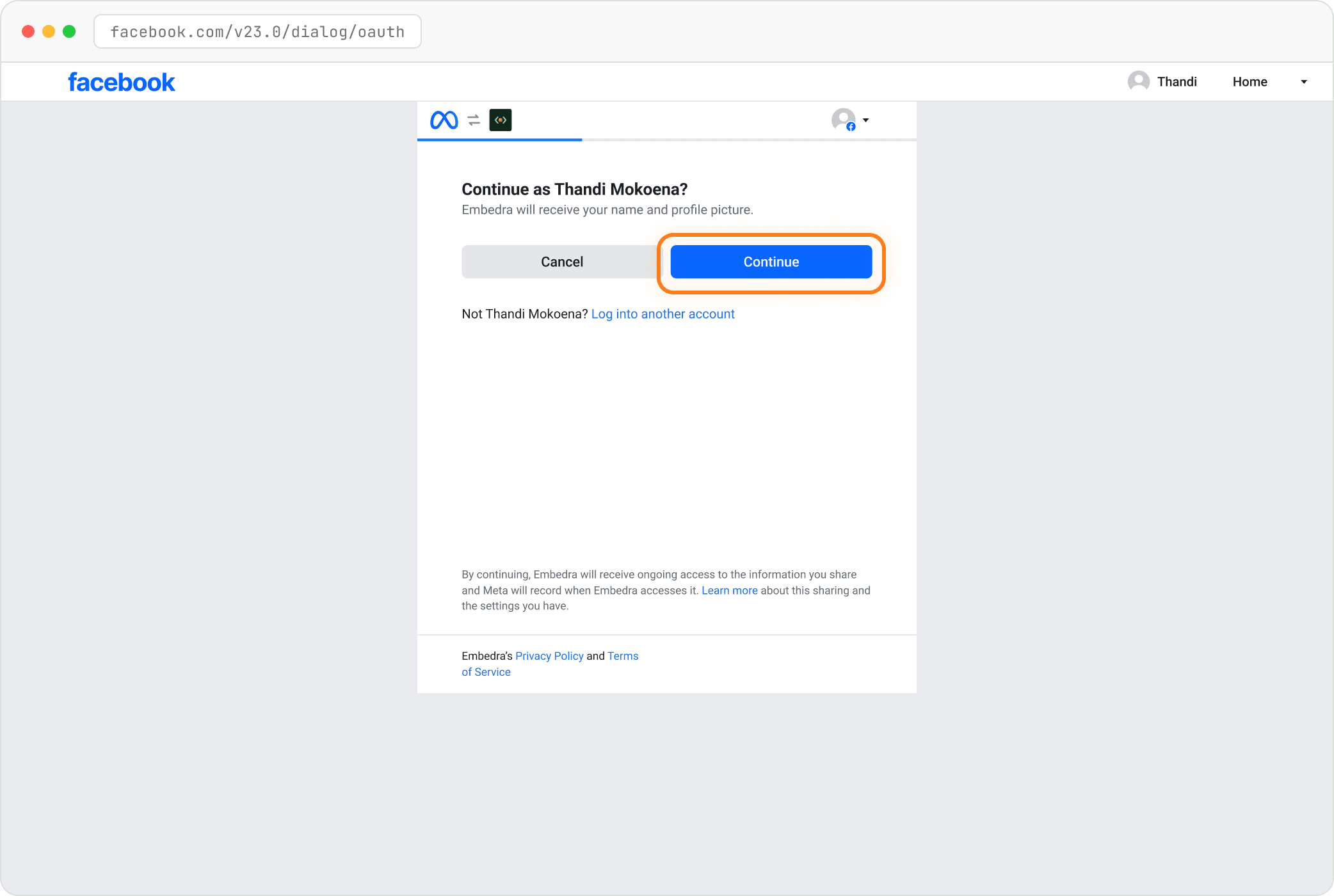
Continue as you
Facebook asks "Continue as …?". Check that it is your name, the one that manages your business Page, then click "Continue".
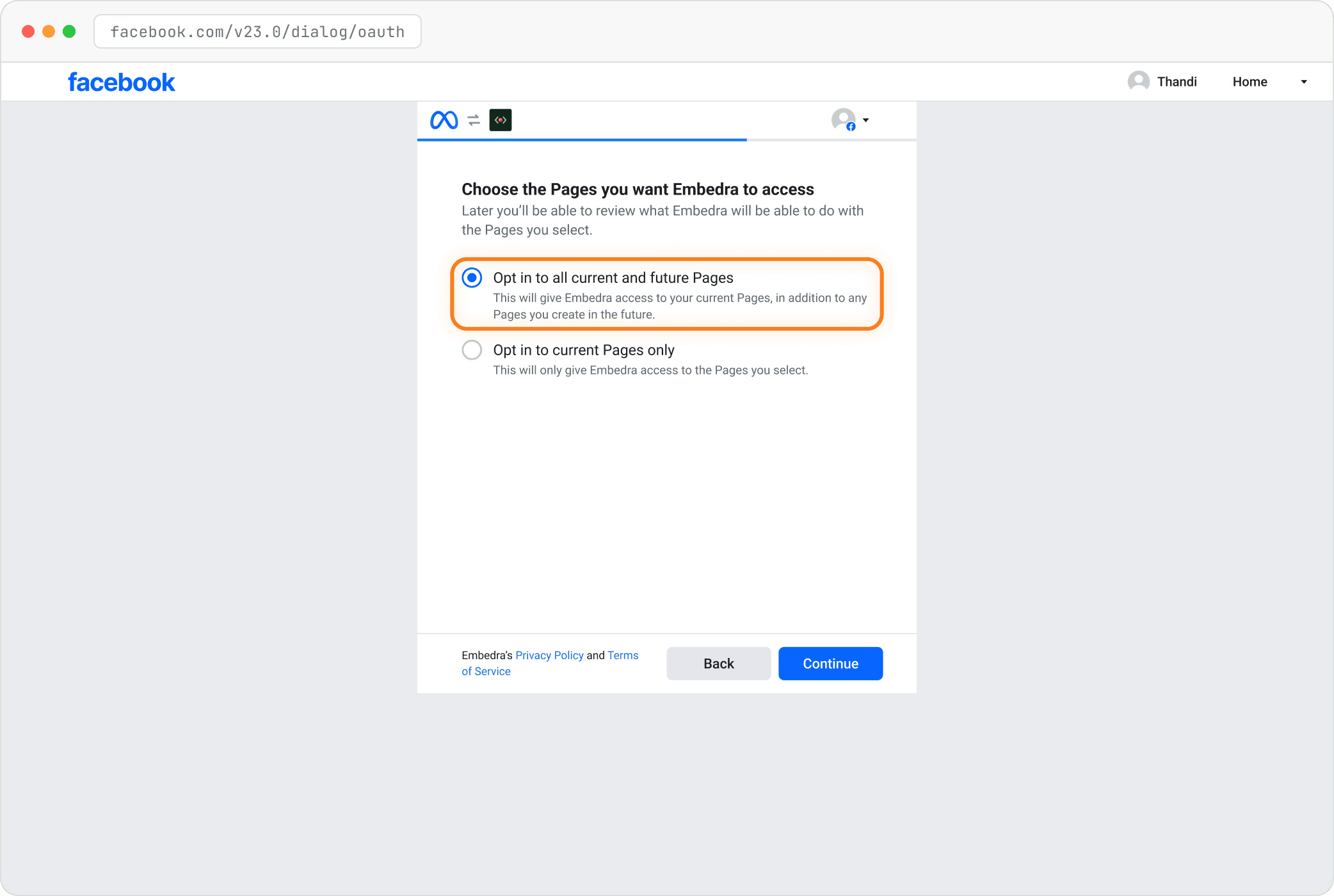
Keep "Opt in to all current and future Pages"
Leave the first option selected and click "Continue". You choose which Page the widget shows inside Embedra afterwards. (If you pick "Opt in to current Pages only", tick your Page in the list that appears.)
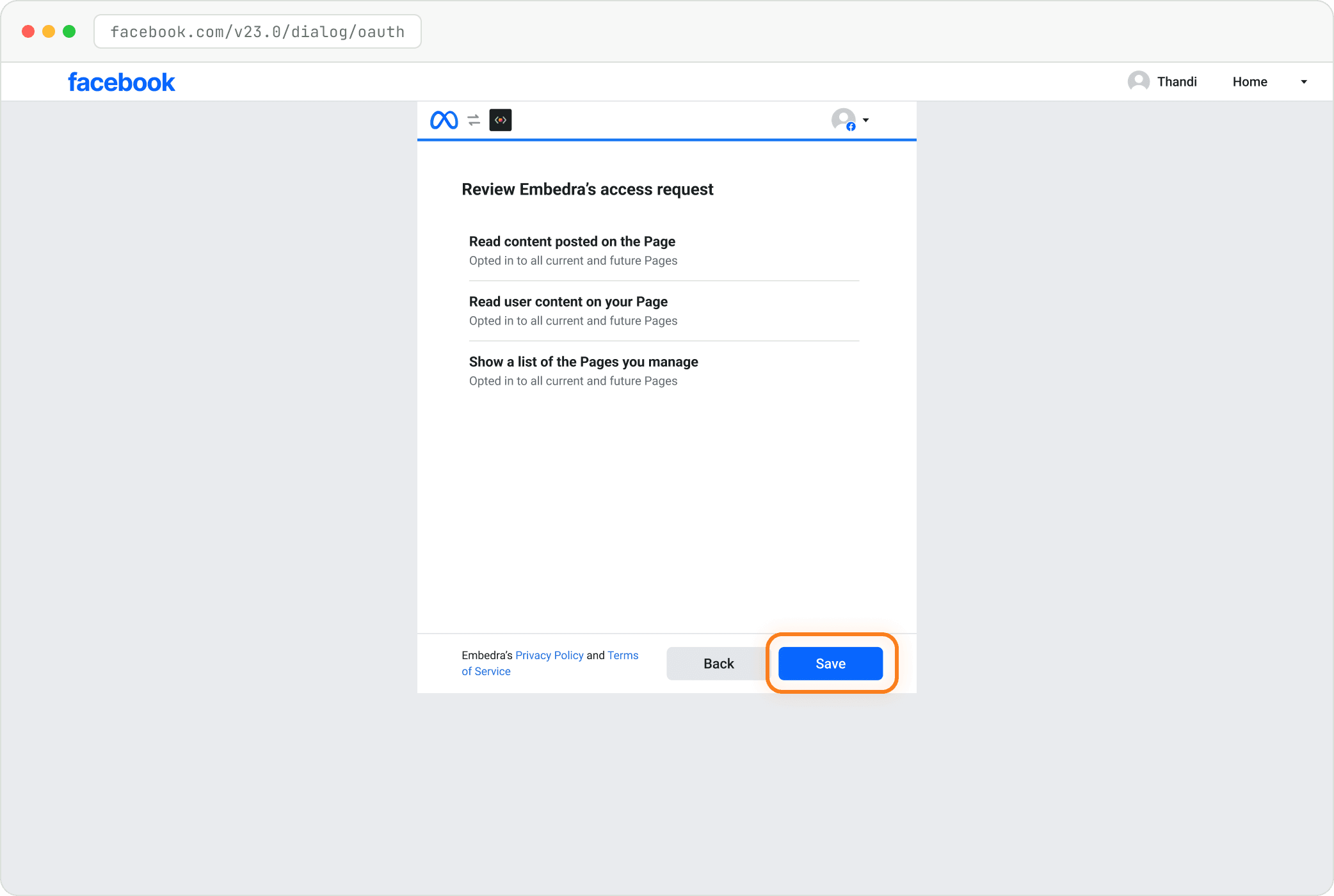
Review, then click "Save"
Facebook lists the three things Embedra can do, all read-only: read content posted on the Page, read user content on your Page, and show a list of the Pages you manage. Click "Save".
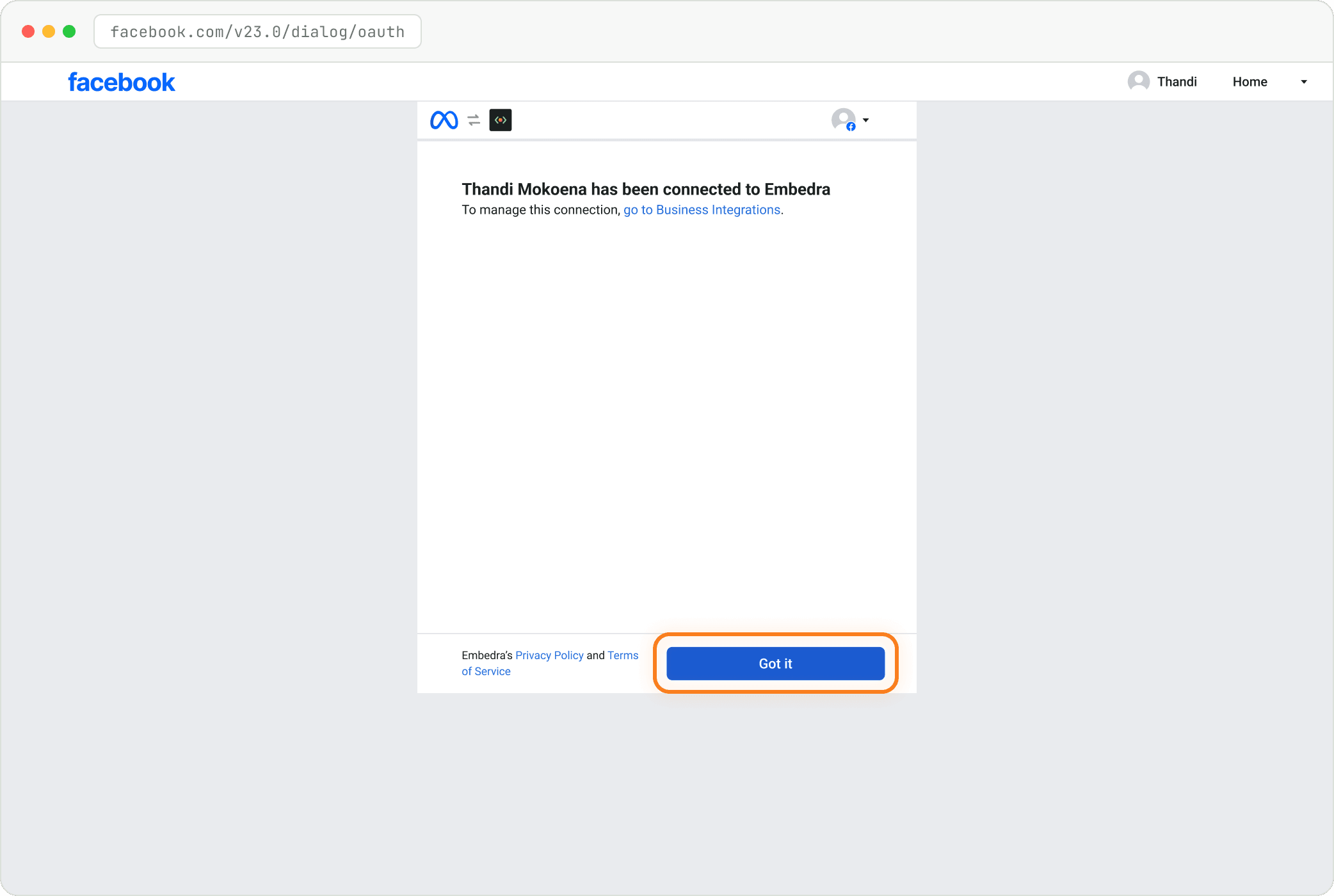
Click "Got it"
Facebook confirms you are connected to Embedra. Click "Got it" and you come back to the builder.
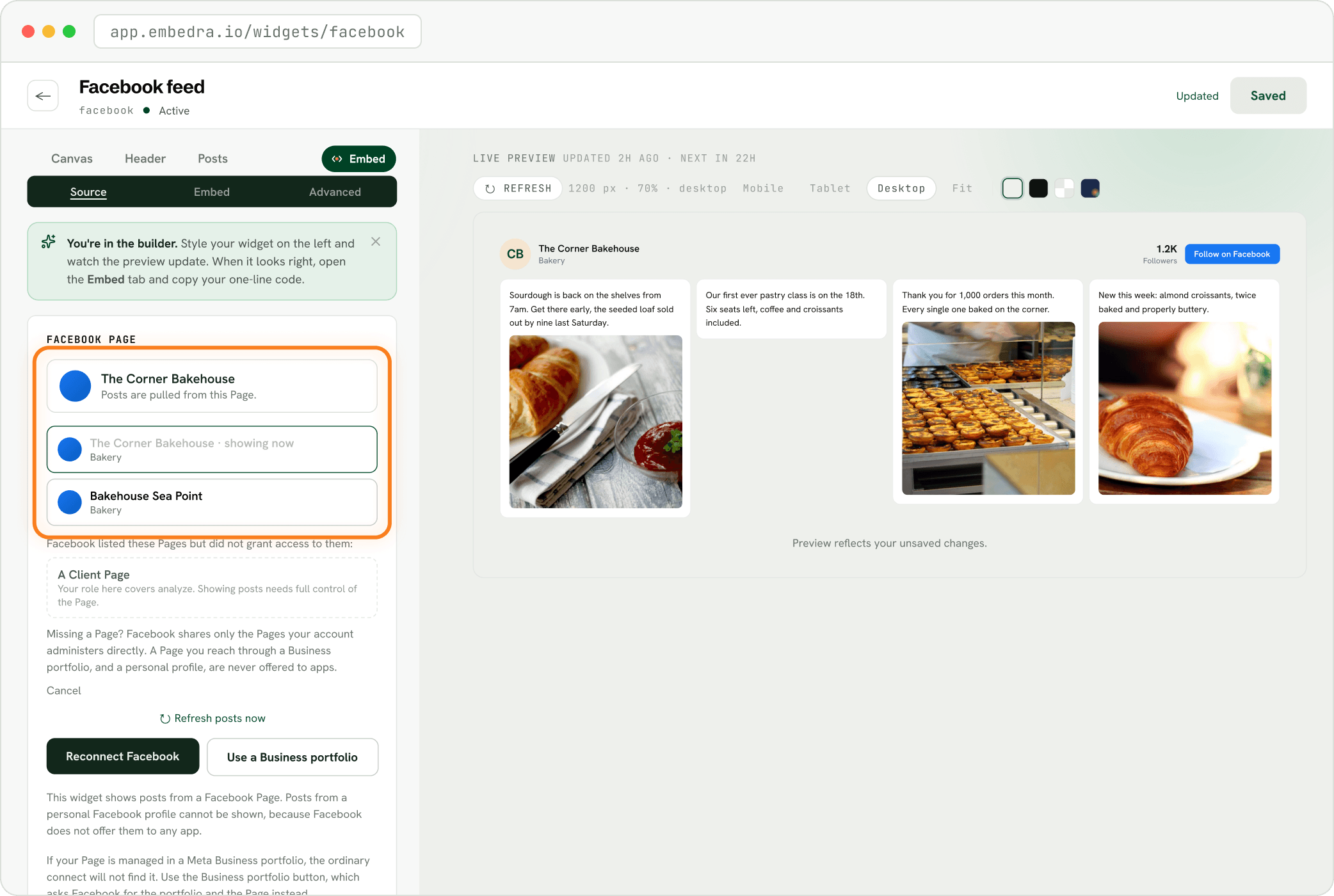
Choose your Page
You come back to the builder under "FACEBOOK PAGE". Click your Page in the list. The one marked "showing now" is the one on your widget.
- Fix
My Page is not in the list
Facebook only shares Pages your account manages directly. If your Page lives in a Meta Business portfolio, click "Use a Business portfolio". If you forgot to tick it, click "Reconnect Facebook": your widget, its styling and its code stay the same.
Choose a look
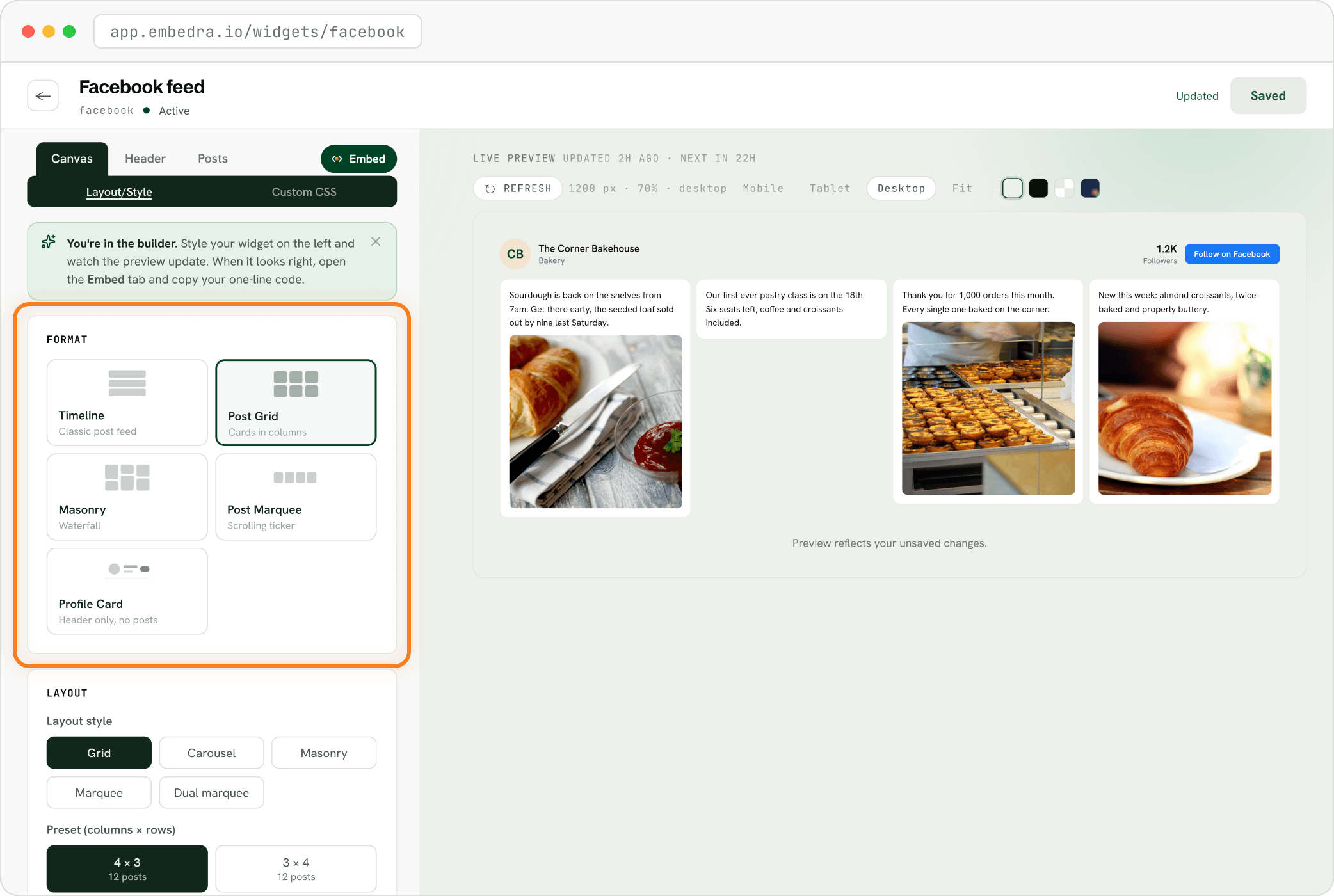
Open Canvas. Under FORMAT, pick Timeline, Post Grid, Masonry, Post Marquee or Profile Card, then set the Layout style below it.
Save, then copy your code
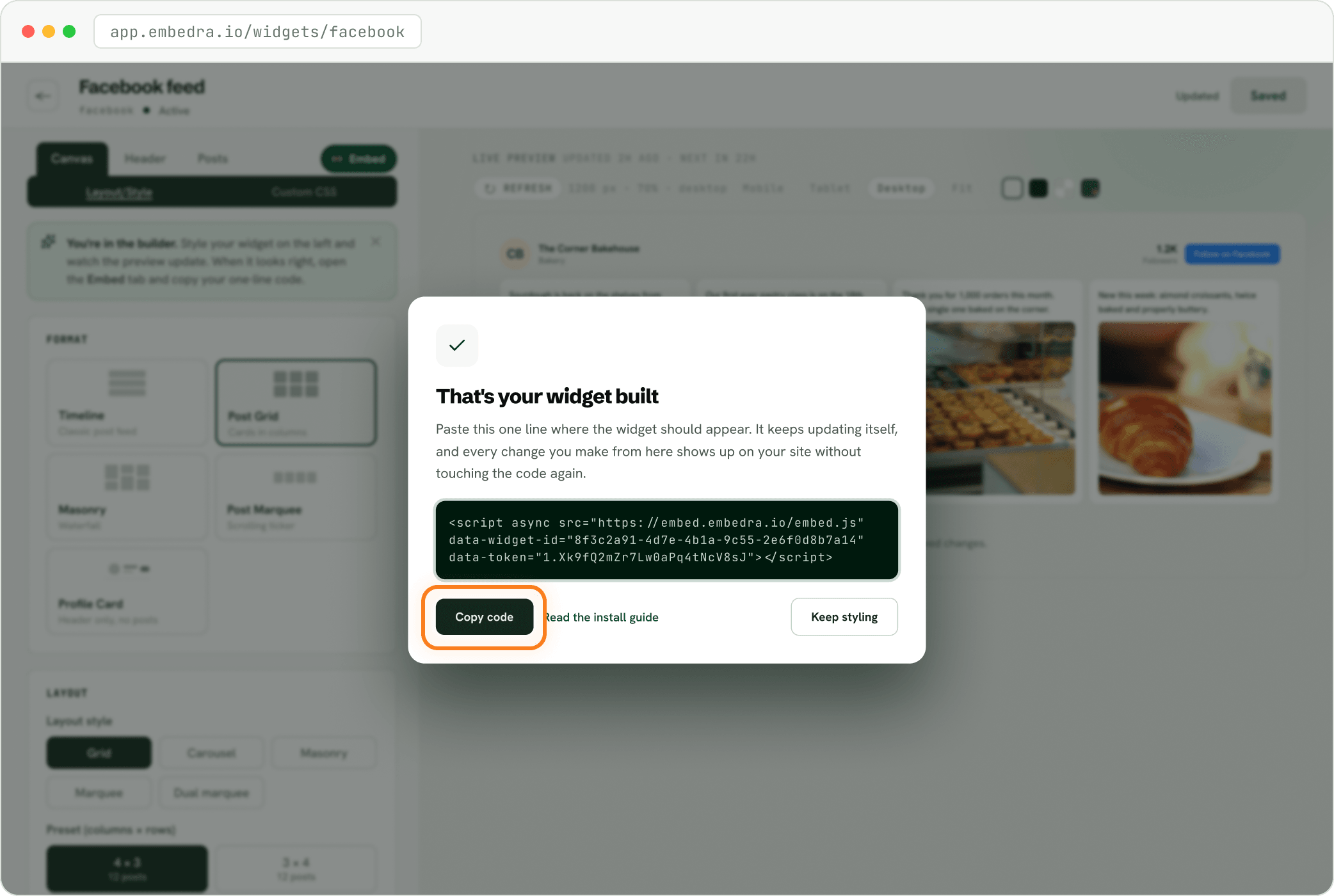
Click "Save changes" at the top right. The first time you save a new widget, "That's your widget built" opens. Click "Copy code": that one line is your whole widget. Next, follow the install guide for your website builder.
NEXT
Add your widget to your website →Where to paste your code in WordPress, Shopify, Webflow, Framer, Wix and more.
Need to switch accounts later, or fix a lapsed connection? Reconnect your Facebook widget.
Stuck on a step? Email support@embedra.io. A real person replies.