RECONNECT · FACEBOOK
Switch Pages, or reconnect Facebook
Already built your widget? This is how to show a different Page, add a Page that was not ticked the first time, or fix a connection that has lapsed. Your widget, its styling and its embed code stay the same. About 2 minutes.
Open your widget, then Embed and Source
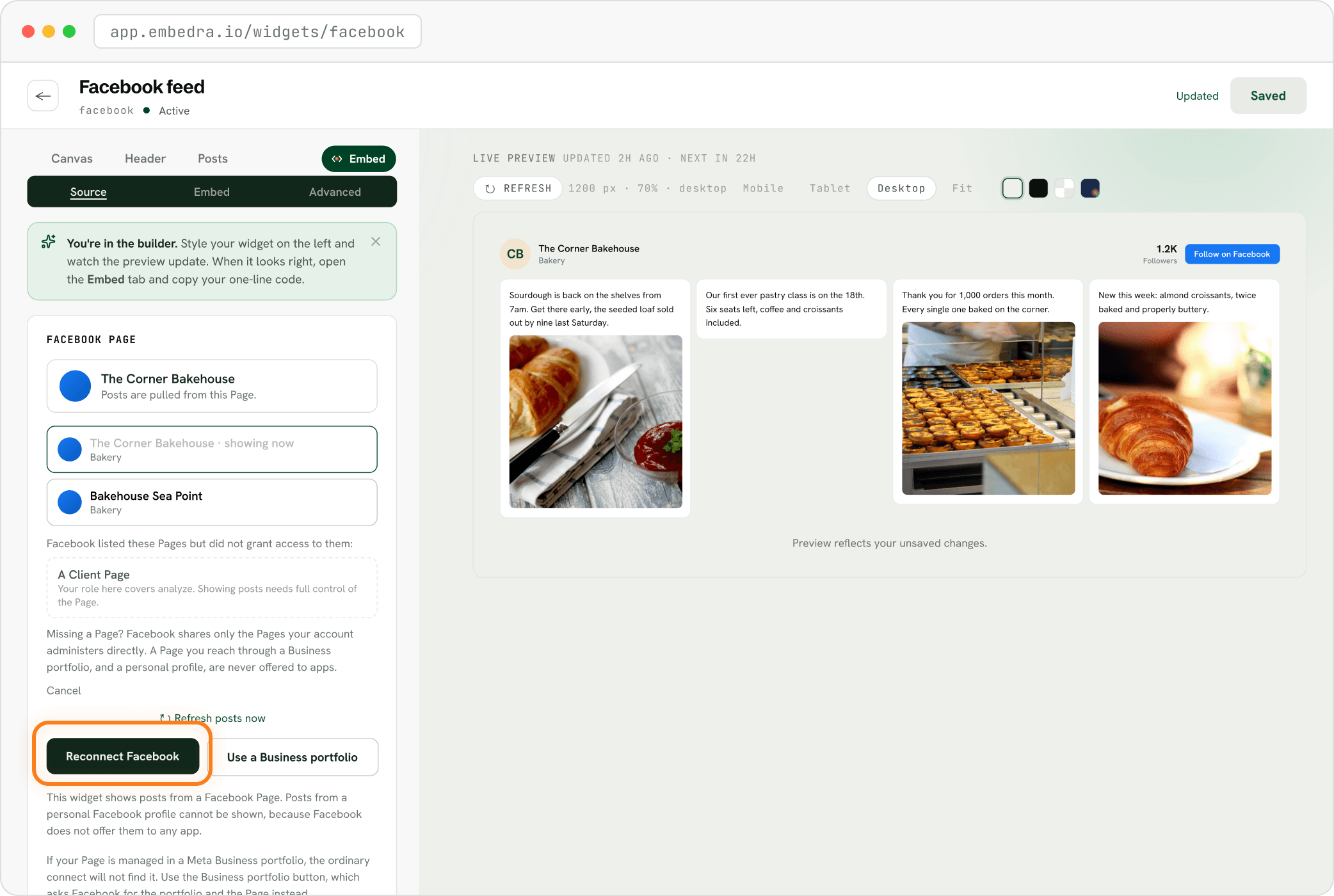
On your dashboard, open the Facebook widget. Click the Embed pill, then Source. Under "FACEBOOK PAGE", click another Page in the list and the widget switches to it. If the Page you want is missing, click "Reconnect Facebook", or "Use a Business portfolio" if the Page is managed in one.
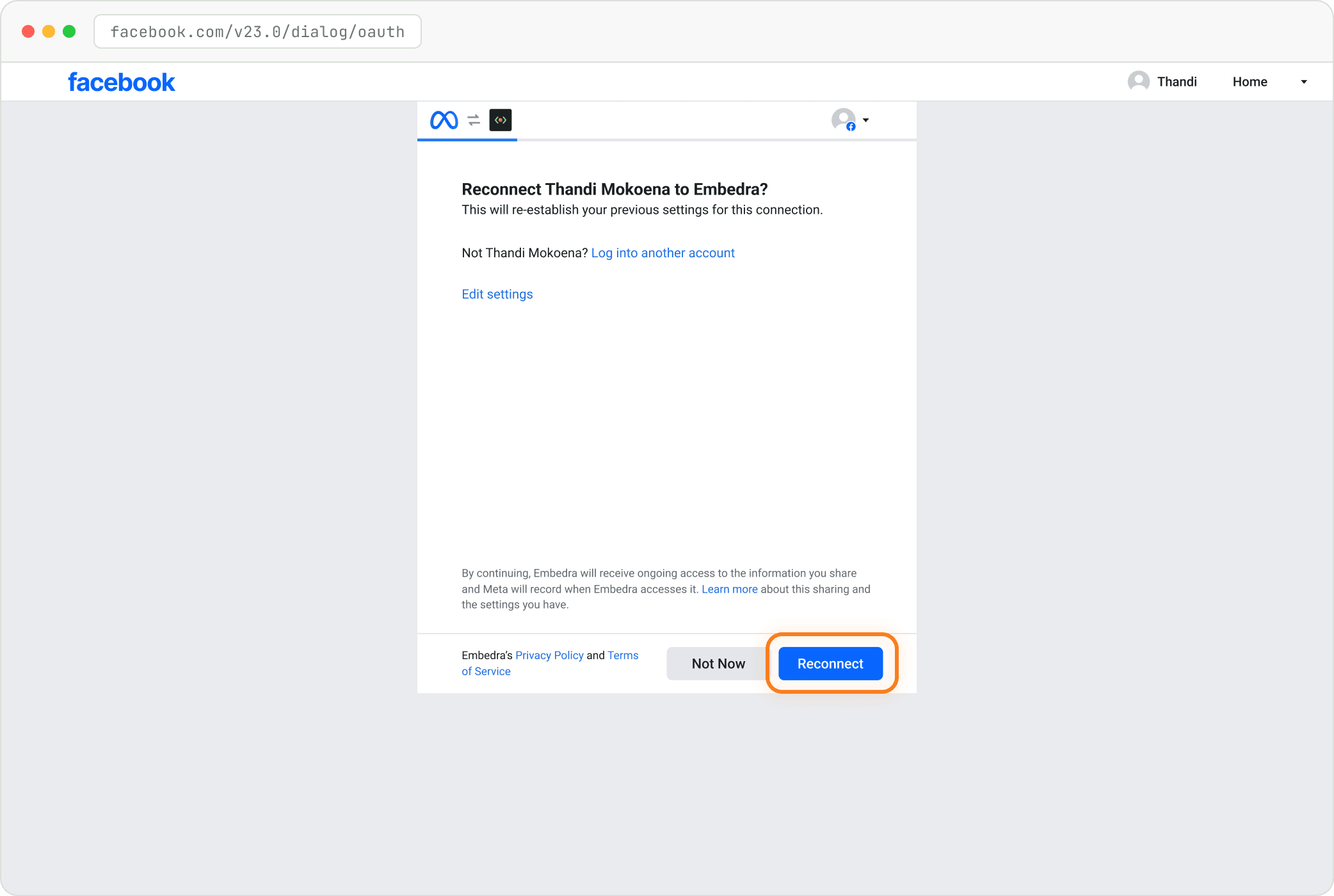
Facebook asks to reconnect: click "Reconnect"
Facebook remembers your choices and asks "Reconnect … to Embedra?". Click "Reconnect" to keep them, or "Edit settings" to tick your Pages again, then "Got it". You land back in the builder: pick the Page under "FACEBOOK PAGE" if it is new.
- Heads up
Using a different Facebook account?
Facebook connects whichever account this browser is logged into. To use another account, log out of Facebook first, then come back and click "Reconnect Facebook".
Setting this widget up for the first time? Create your Facebook widget walks through it from the start.
Stuck on a step? Email support@embedra.io. A real person replies.