RECONNECT · INSTAGRAM FEED
Reconnect your Instagram feed
Already built your widget? This is how to point it at another Instagram account, or fix a connection that has lapsed. Your widget, its styling and its embed code stay the same. About 2 minutes.
Open your widget, then Embed and Source
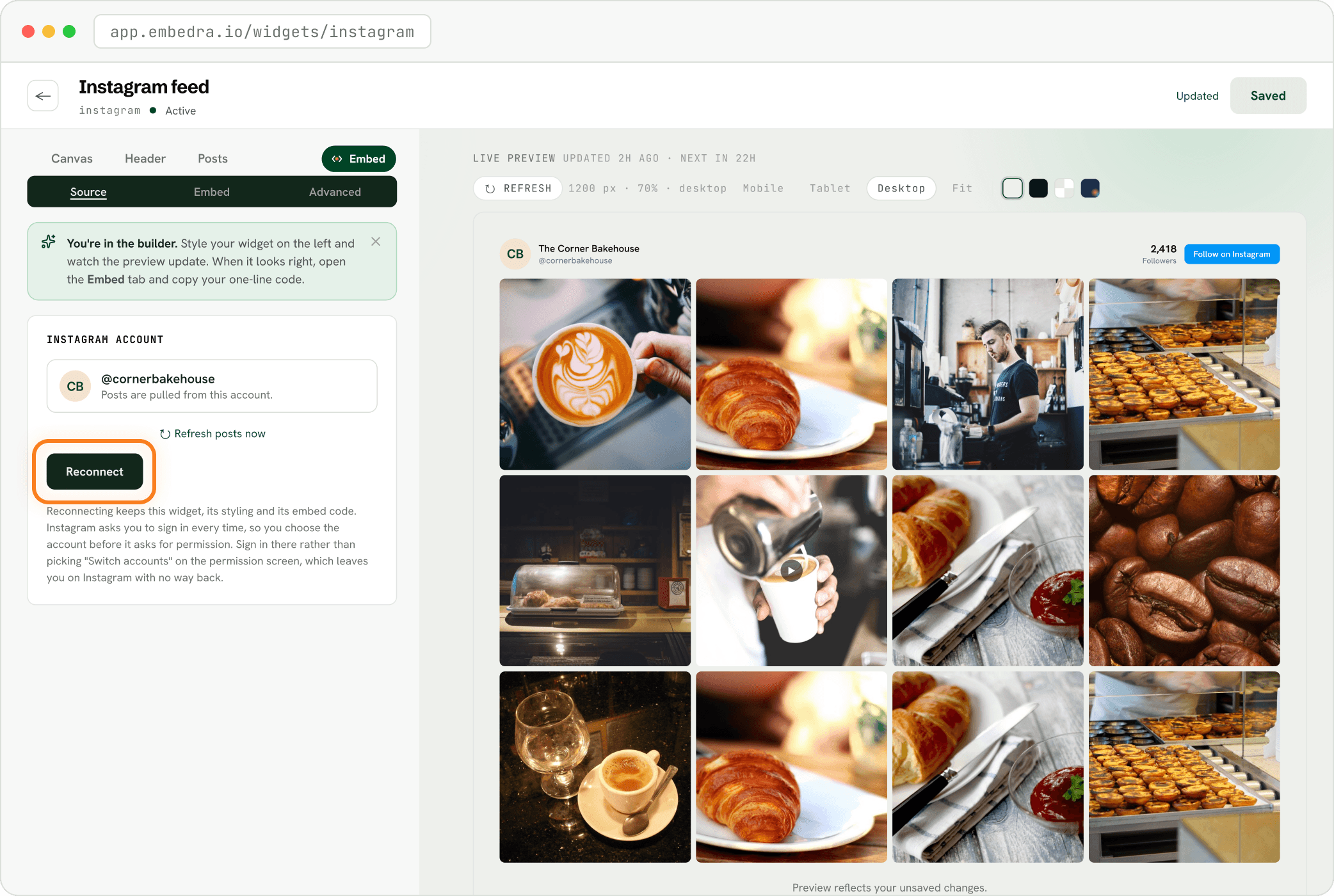
On your dashboard, open the Instagram widget. Click the Embed pill, then Source. Under "INSTAGRAM ACCOUNT" you see which account is connected. Click "Reconnect".
Log in with the account you want, then click "Allow"
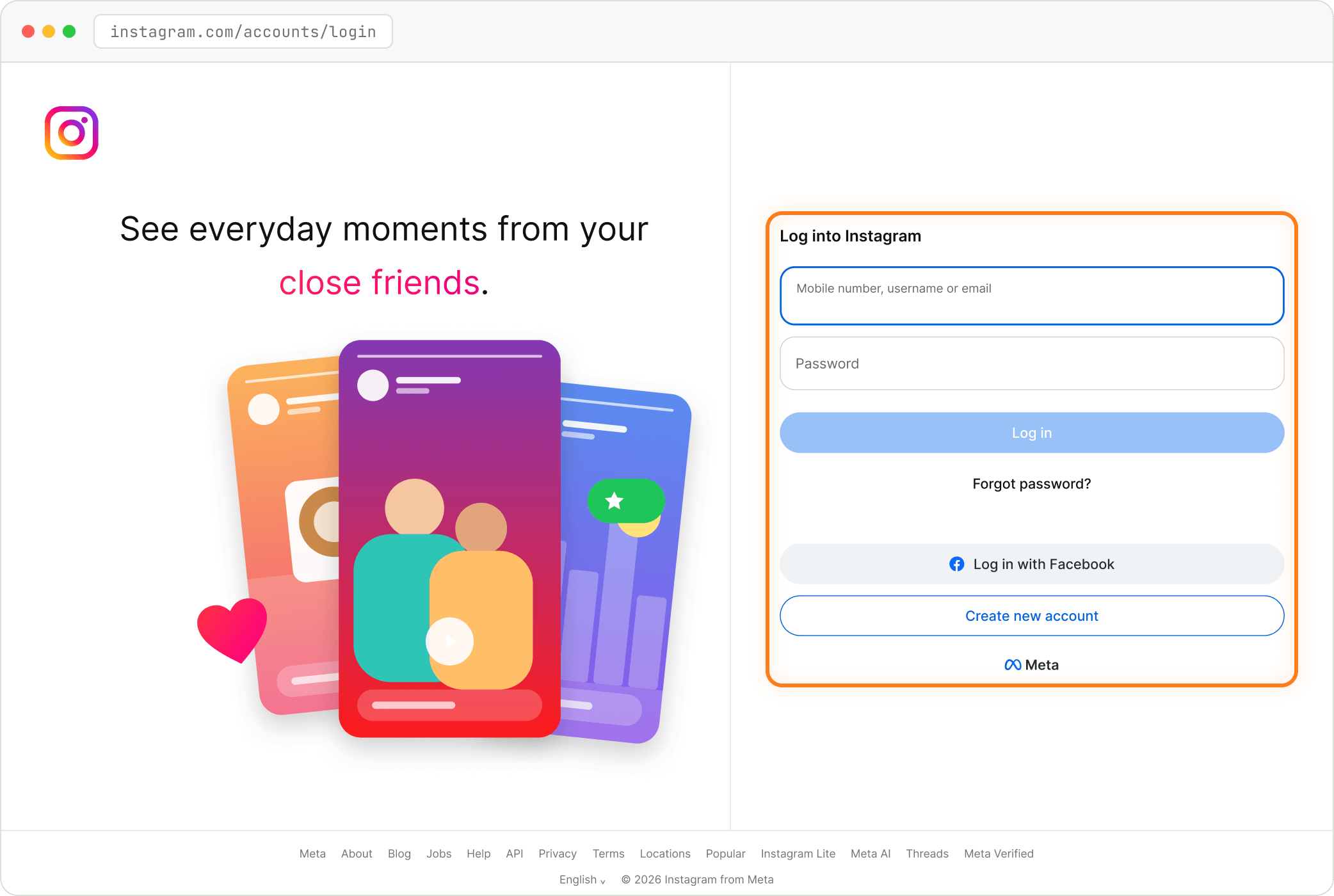
Instagram asks you to log in every time, so this is where you choose the account: sign in with the one whose posts you want to show, then click "Allow". You land back in the builder and the posts switch to that account.
- Heads up
Sign in on the login page, not "Switch accounts"
Choose the account on Instagram's login page. Picking "Switch accounts" on the permission screen leaves you on Instagram with no way back to Embedra.
Setting this widget up for the first time? Create your Instagram feed widget walks through it from the start.
Stuck on a step? Email support@embedra.io. A real person replies.