WIDGETS · YOUTUBE · NOT LIVE YET
Create a YouTube feed
Show your latest YouTube uploads on your website as clickable thumbnails. No YouTube login is needed. About 3 minutes.
- Heads up
Not live yet
The YouTube card only appears in "Add a widget" once YouTube launches for your workspace. This guide is ready for the day it does.
Click "+ New widget"
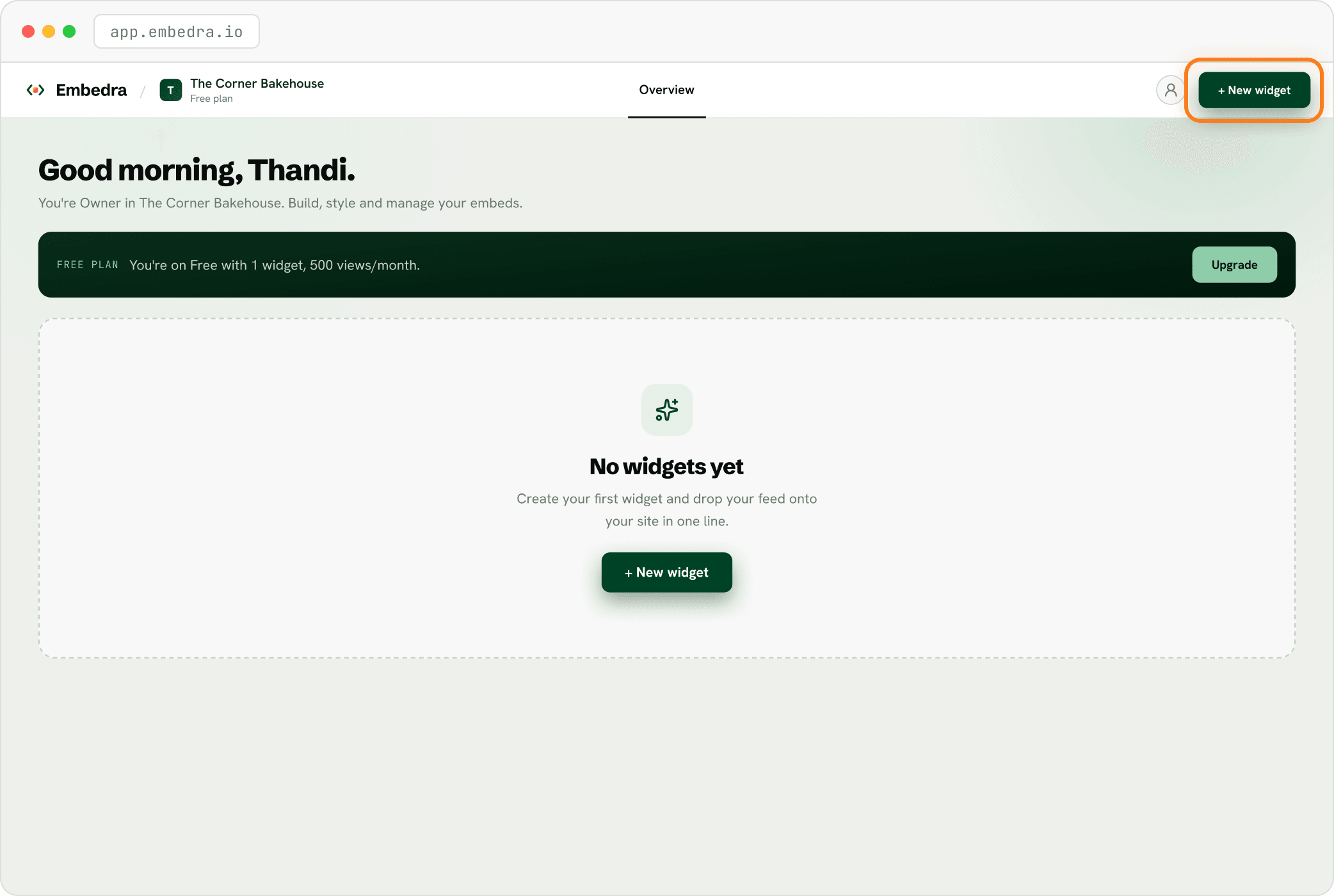
Sign in at app.embedra.io. On your dashboard, click "+ New widget" at the top. A window called "Add a widget" opens.
Pick "YouTube"
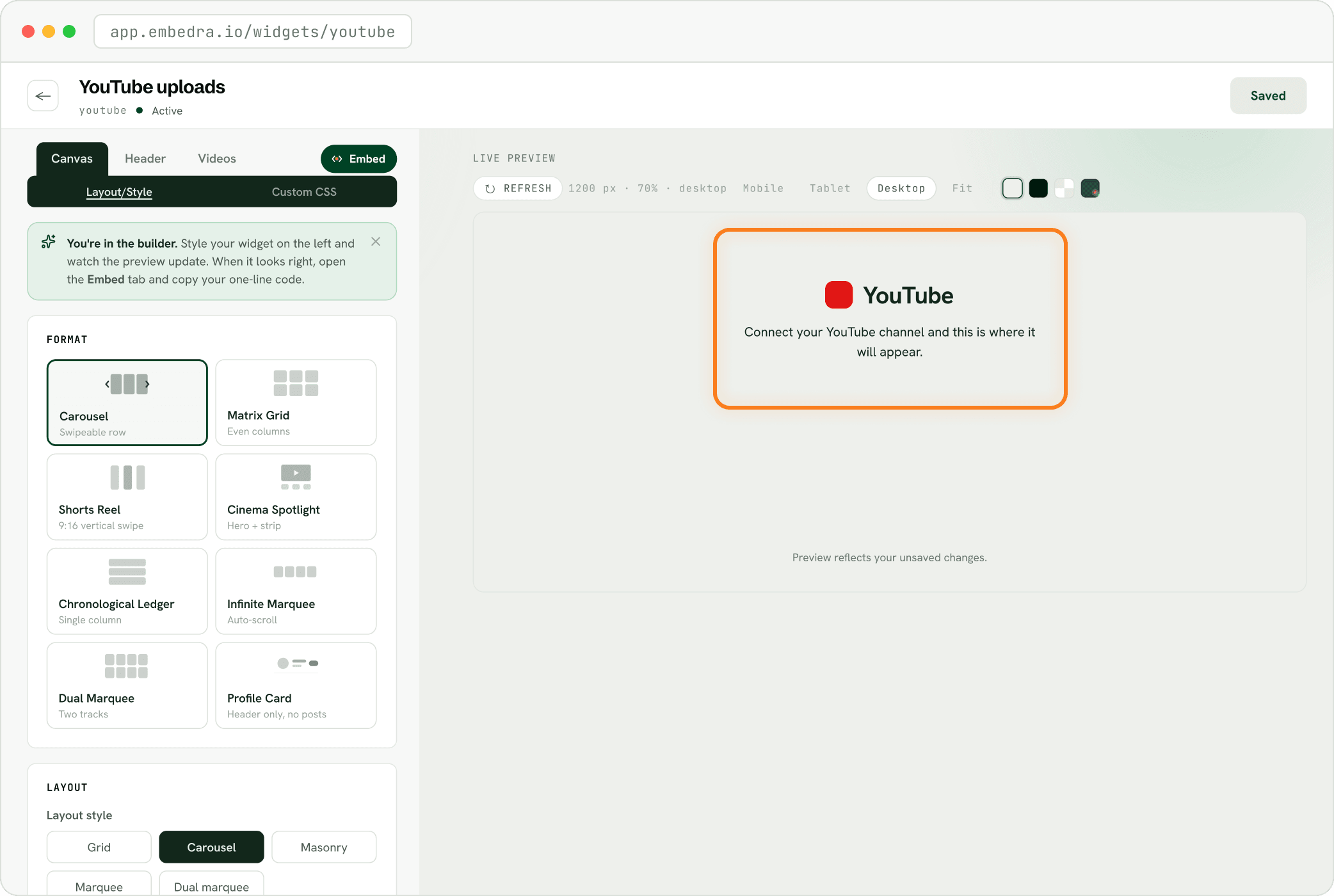
Find the YouTube card and click "Add YouTube uploads →". The builder opens straight away. The preview says "Connect your YouTube channel and this is where it will appear."
Find your channel
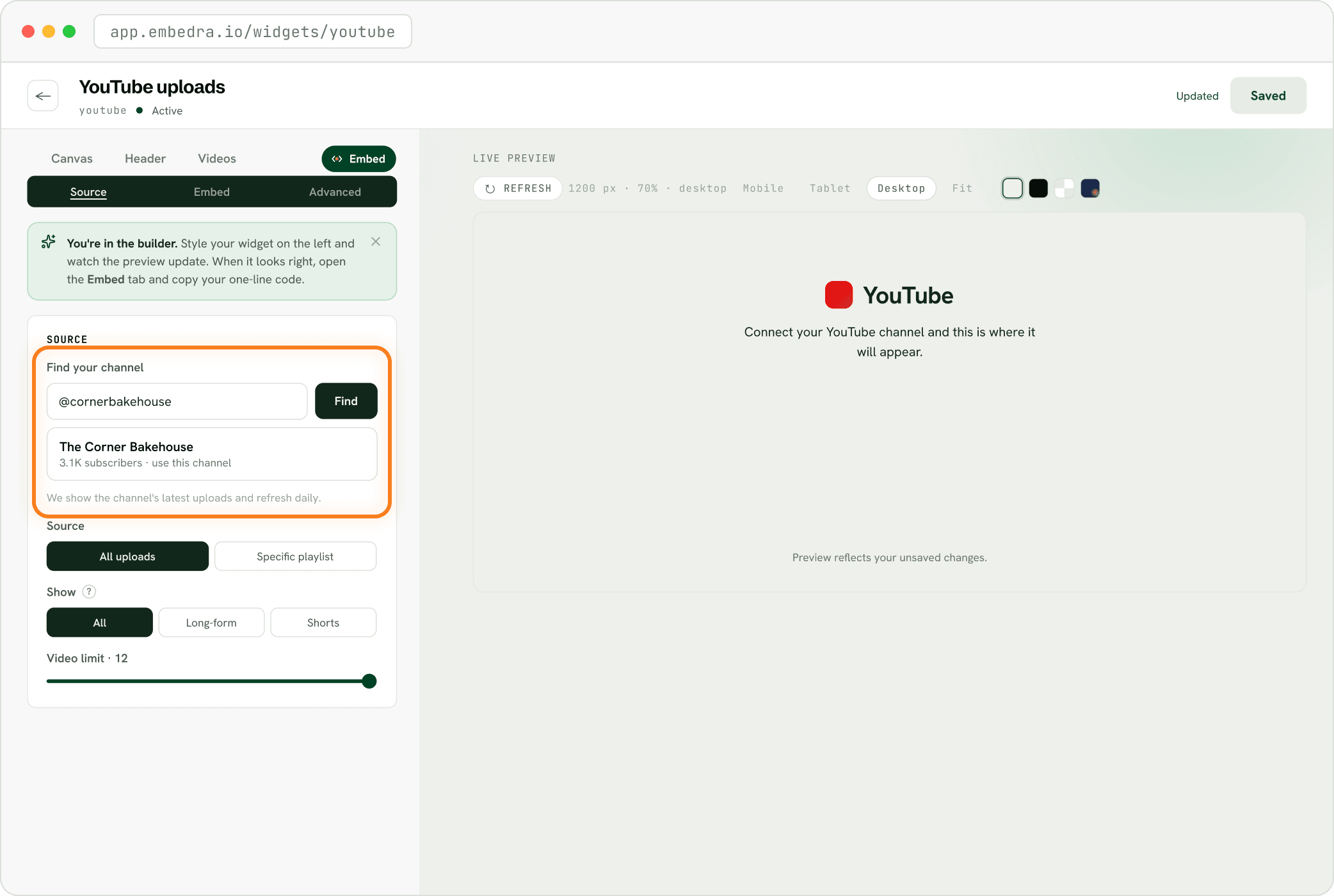
Click the Embed pill, then Source. Under "Find your channel", type your handle (like @cornerbakehouse) or paste your channel link, and click "Find". Your channel appears with its subscriber count: click it ("use this channel").
- Tip
Only Shorts, or one playlist?
Under Source, pick "Specific playlist" instead of "All uploads". Under Show, pick "Long-form" or "Shorts".
Choose a look
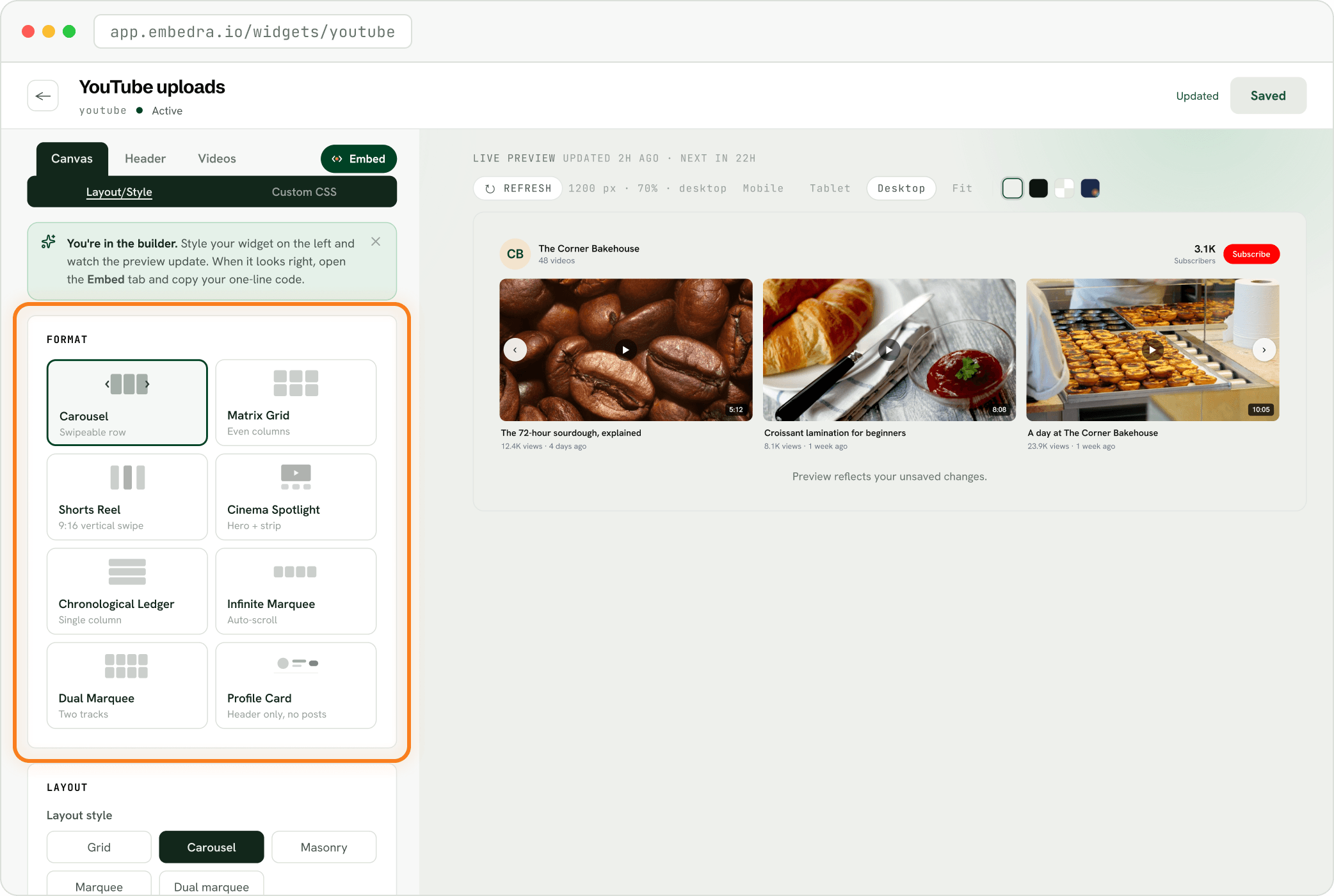
Open Canvas. Under FORMAT, pick Carousel, Matrix Grid, Shorts Reel, Cinema Spotlight, Chronological Ledger, Infinite Marquee, Dual Marquee or Profile Card.
Save, then copy your code
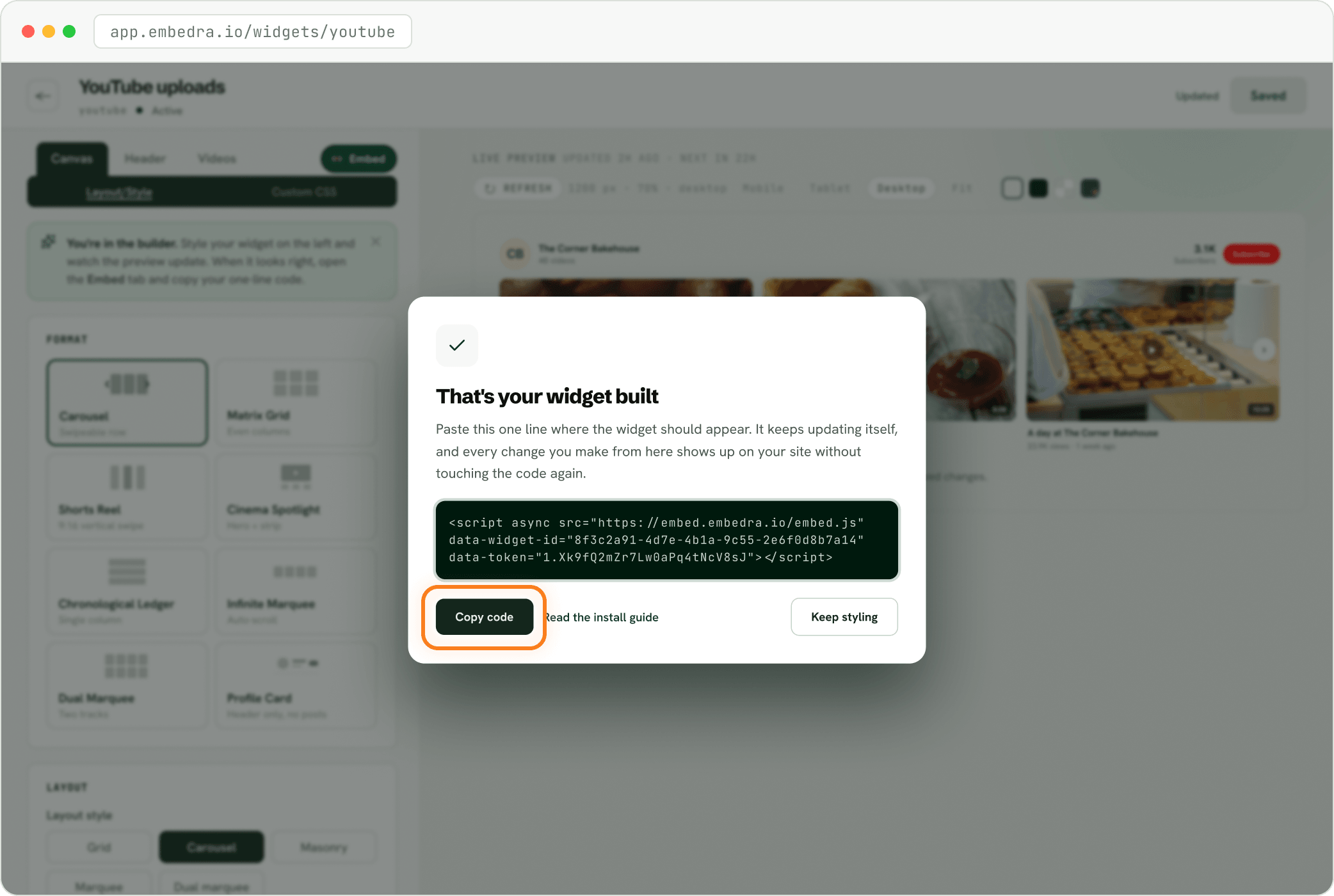
Click "Save changes" at the top right. The first time you save a new widget, "That's your widget built" opens. Click "Copy code": that one line is your whole widget. Next, follow the install guide for your website builder.
NEXT
Add your widget to your website →Where to paste your code in WordPress, Shopify, Webflow, Framer, Wix and more.
Stuck on a step? Email support@embedra.io. A real person replies.