TOOLS · WHATSAPP CHAT
Add a WhatsApp chat button
A chat button for your website that hands visitors straight to your WhatsApp. Add one number, or a few people or desks for visitors to choose from. About 4 minutes.
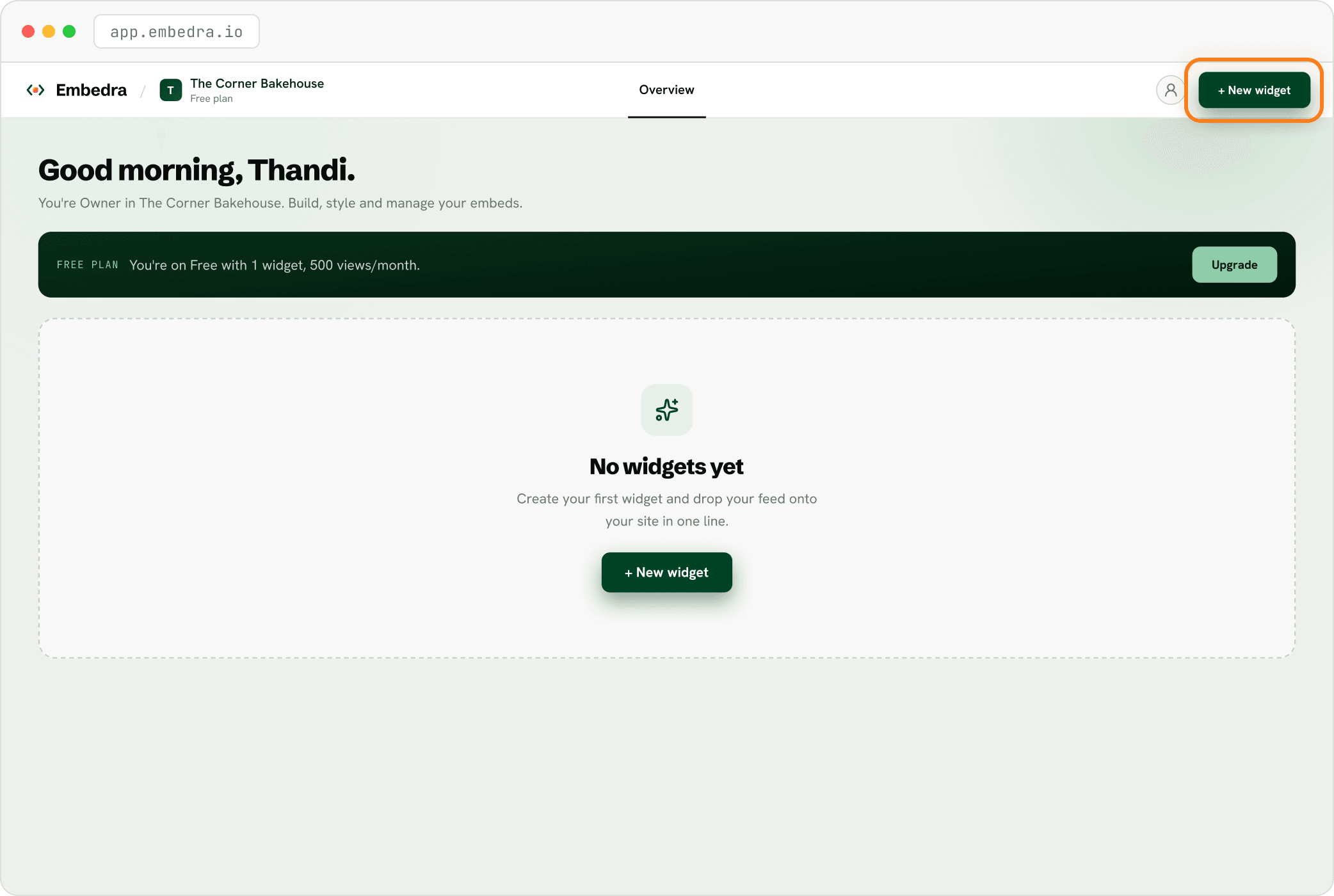
Click "+ New widget"
Sign in at app.embedra.io. On your dashboard, click "+ New widget" at the top. A window called "Add a widget" opens.
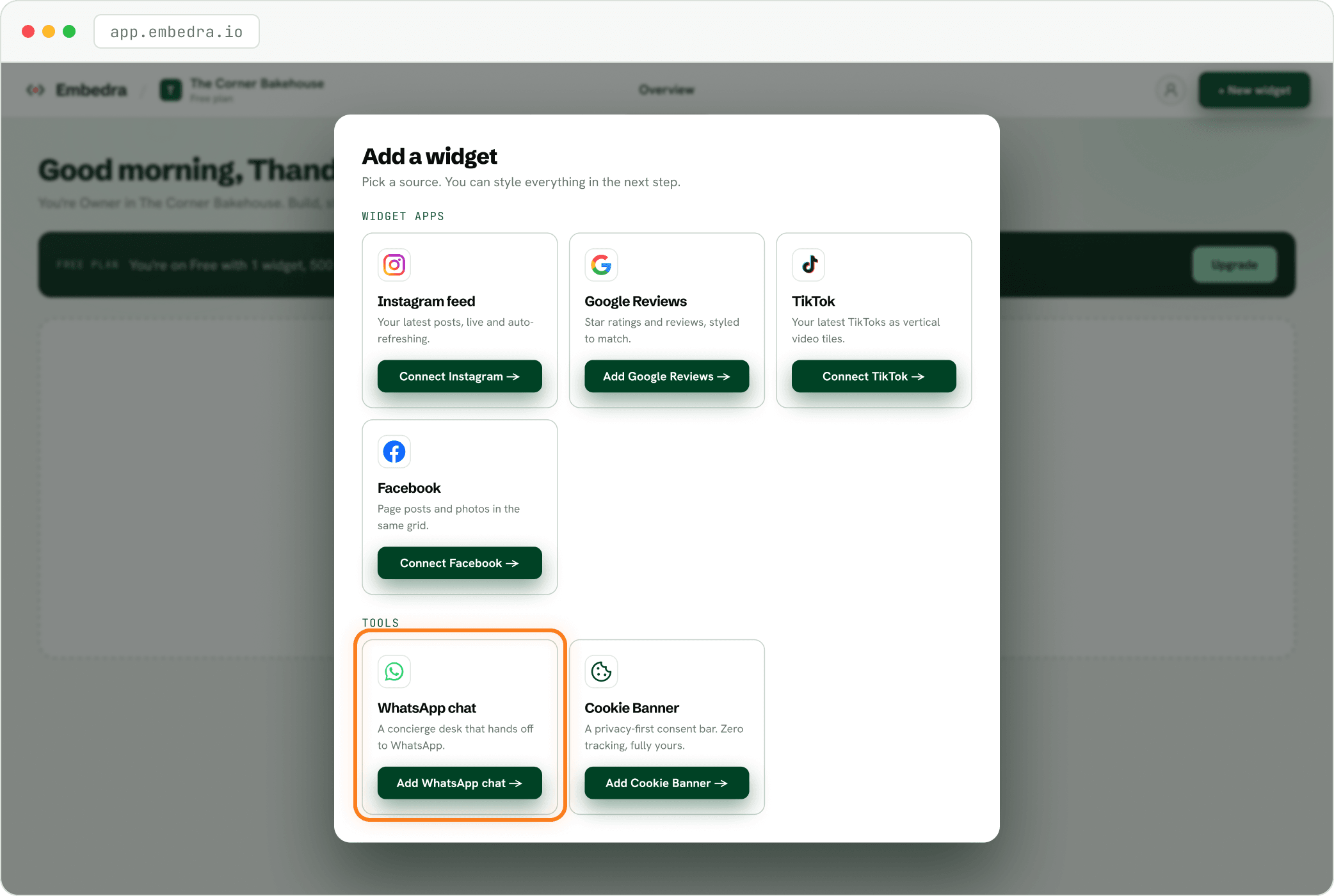
Pick "WhatsApp chat"
Find the WhatsApp chat card and click "Add WhatsApp chat →".
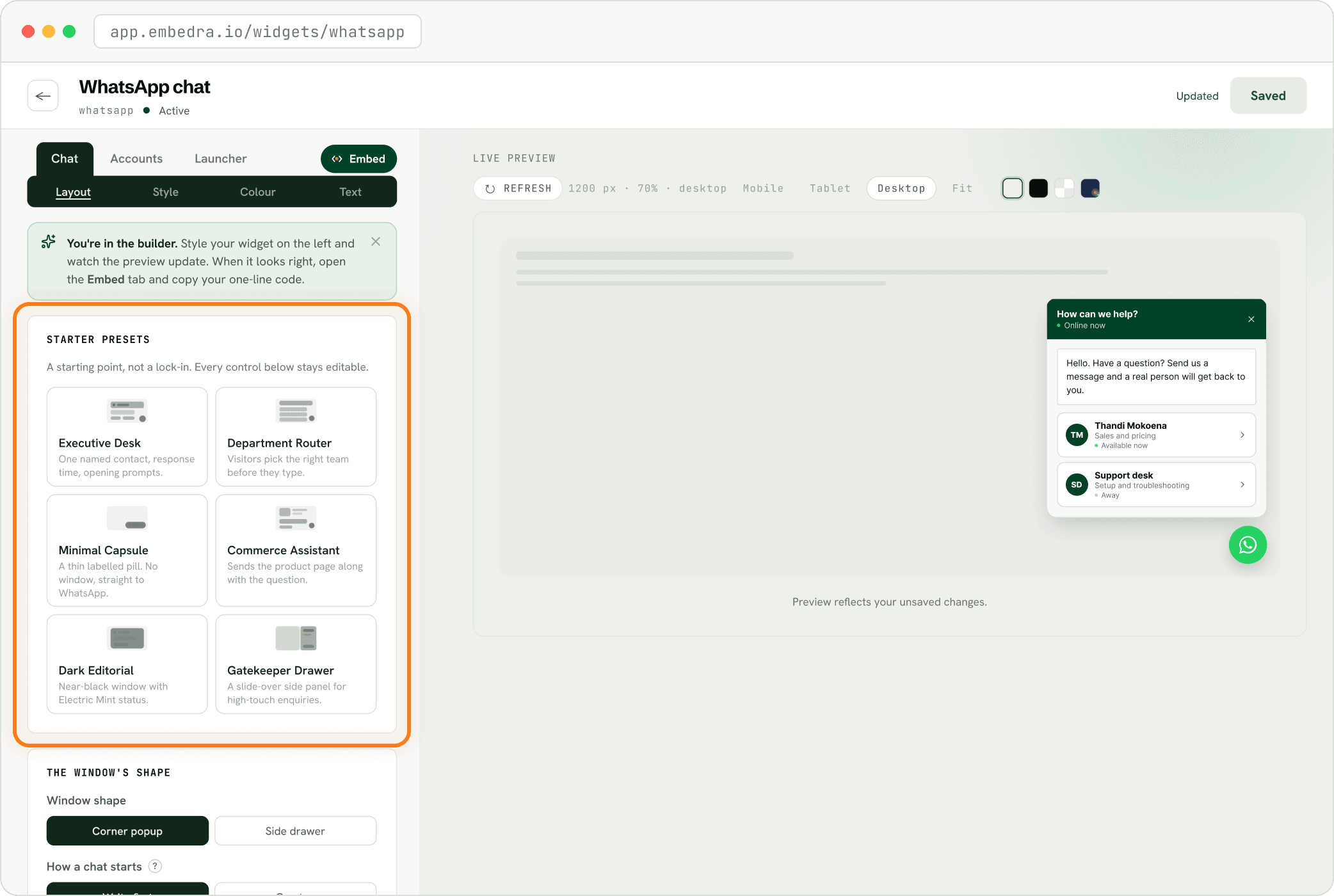
Pick a starting style
Under Chat, then Layout, "STARTER PRESETS" has six looks: Executive Desk, Department Router, Minimal Capsule, Commerce Assistant, Dark Editorial and Gatekeeper Drawer. "A starting point, not a lock-in": you can change everything after.
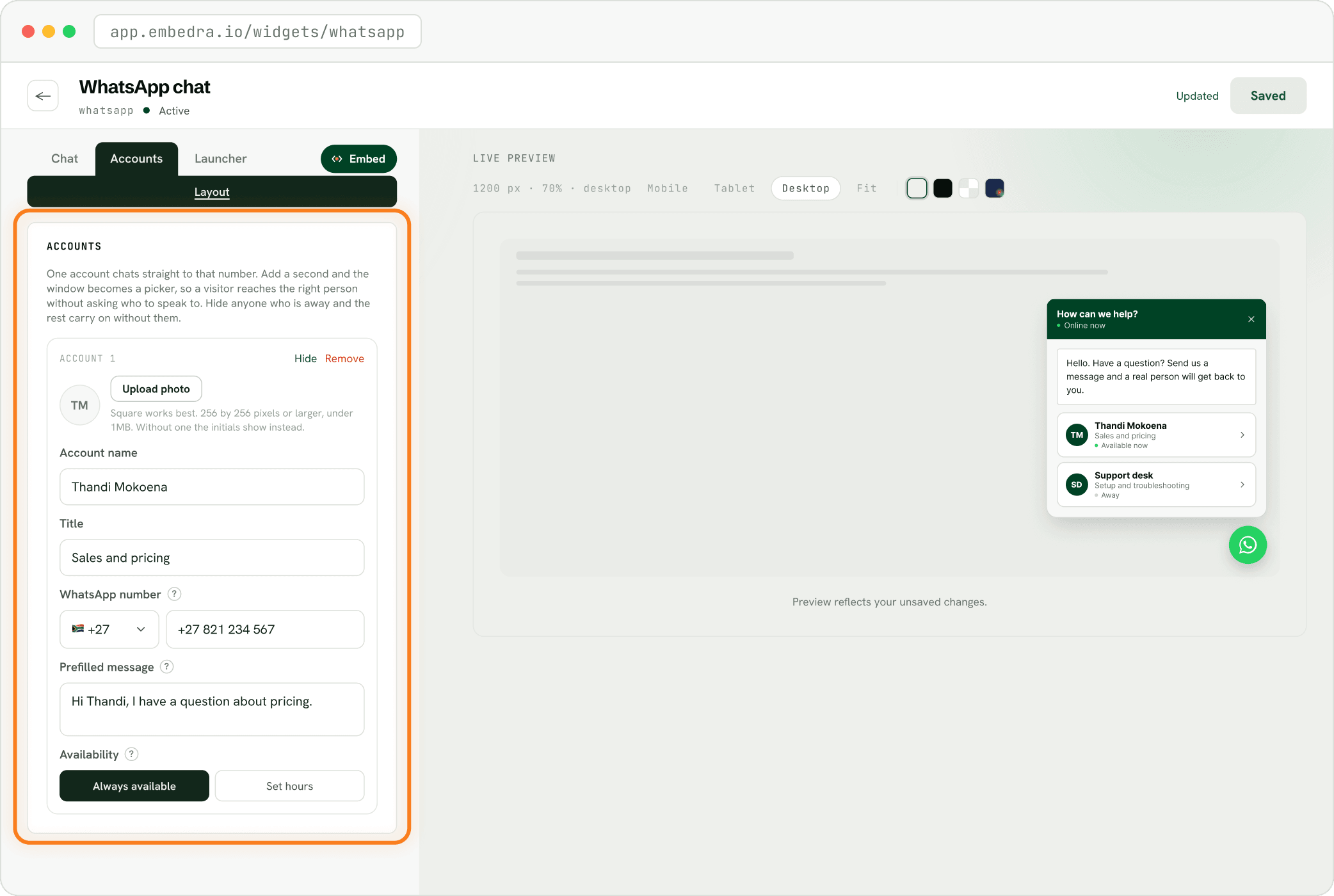
Add your number
Open Accounts. Fill in the name, a title such as "Sales and pricing", and the WhatsApp number people should message. Add a photo if you like. Add a second account and visitors get to choose who to chat to.
Style the chat button
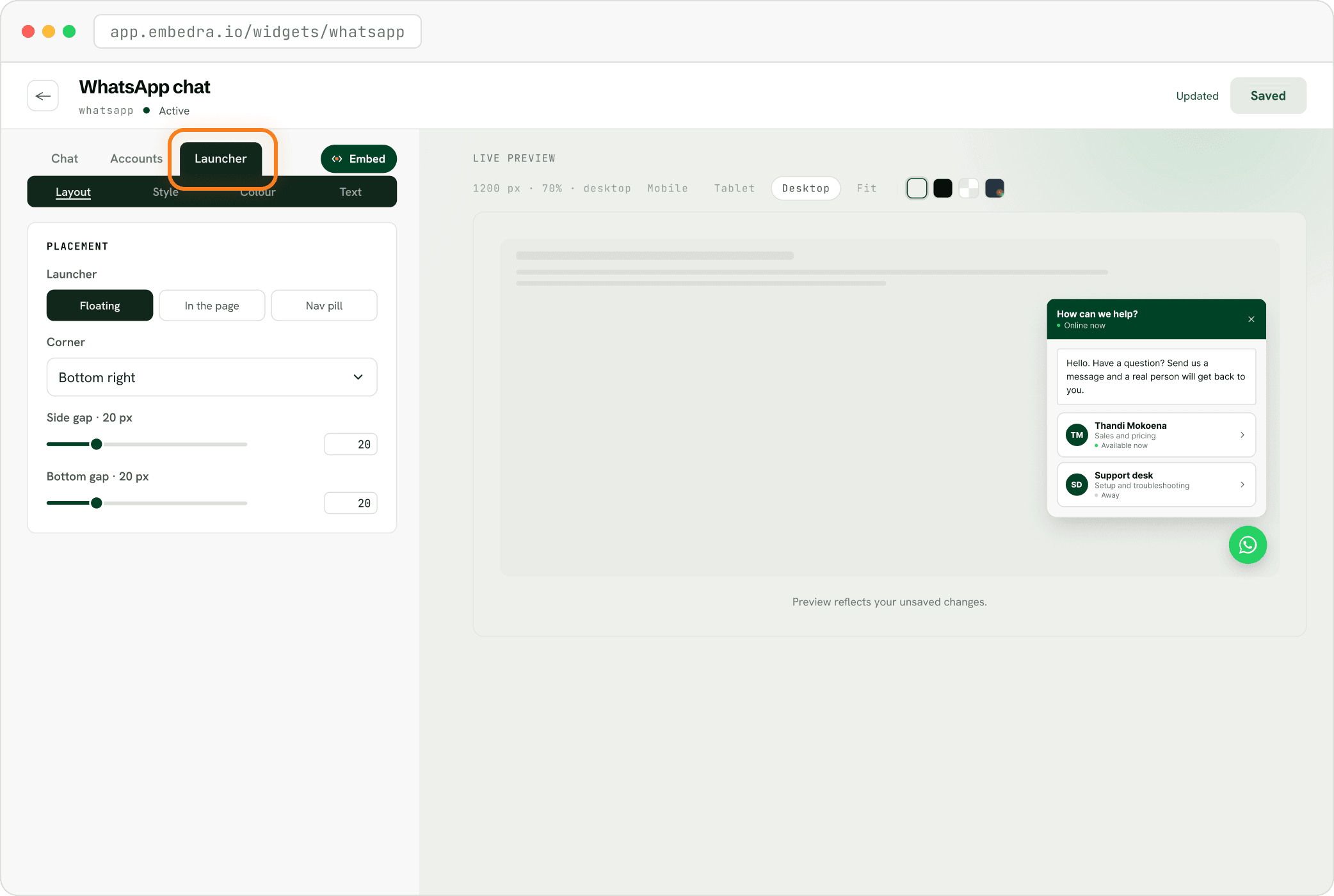
Open Launcher to choose where the button sits and how it looks.
Save, then copy your code
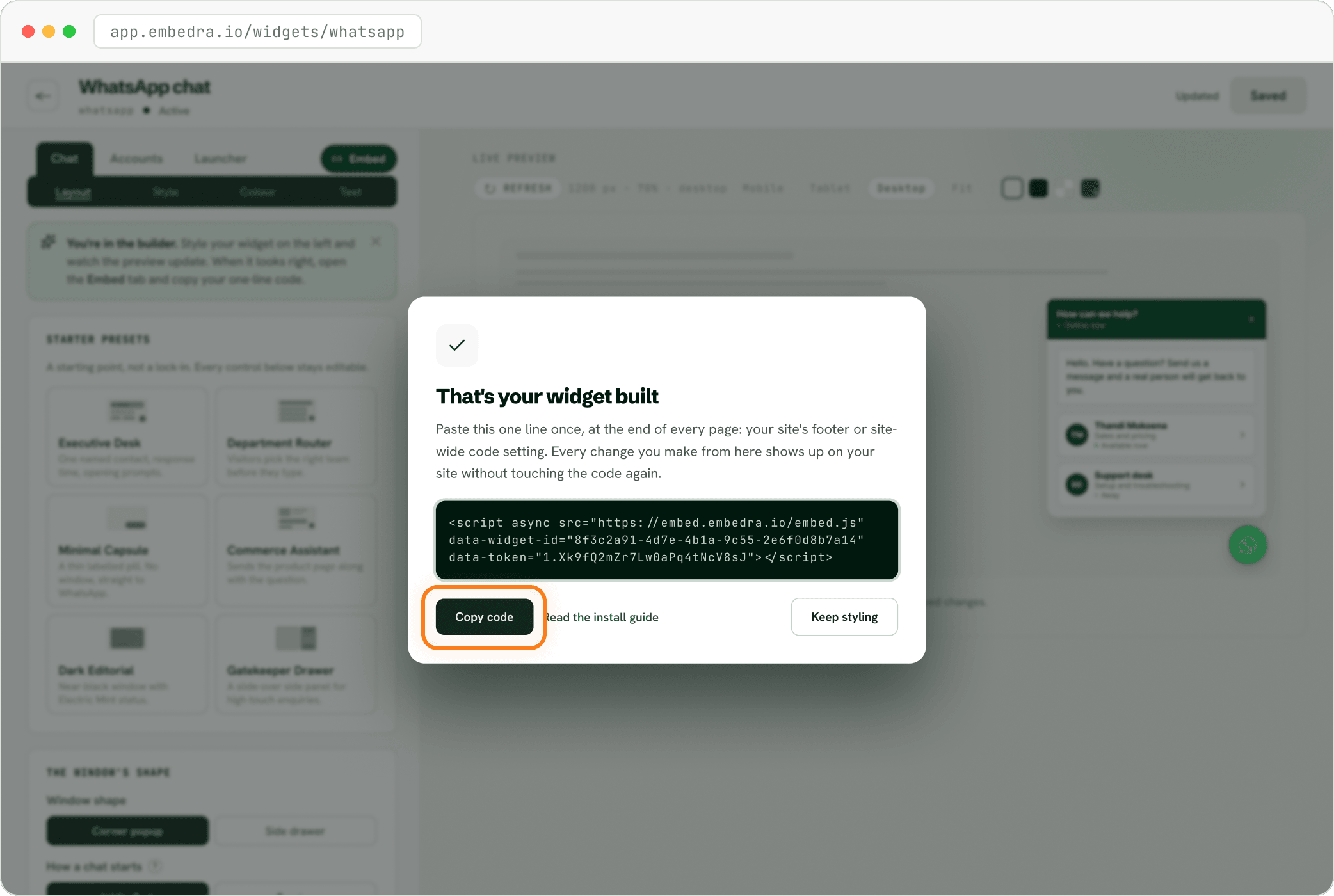
Click "Save changes" at the top right. The first time you save a new widget, "That's your widget built" opens. Click "Copy code": that one line is your whole widget. Next, follow the install guide for your website builder.
- Heads up
Paste it on every page
The chat button floats over your pages, so it belongs on every page. In your install guide, follow the "On every page" steps.
NEXT
Add your widget to your website →Where to paste your code in WordPress, Shopify, Webflow, Framer, Wix and more.
Stuck on a step? Email support@embedra.io. A real person replies.