WIDGETS · GOOGLE REVIEWS
Add your Google reviews
Show your Google star rating and reviews on your website. There is nothing to log in to: you find your business by name, and the reviews keep themselves up to date. About 3 minutes.
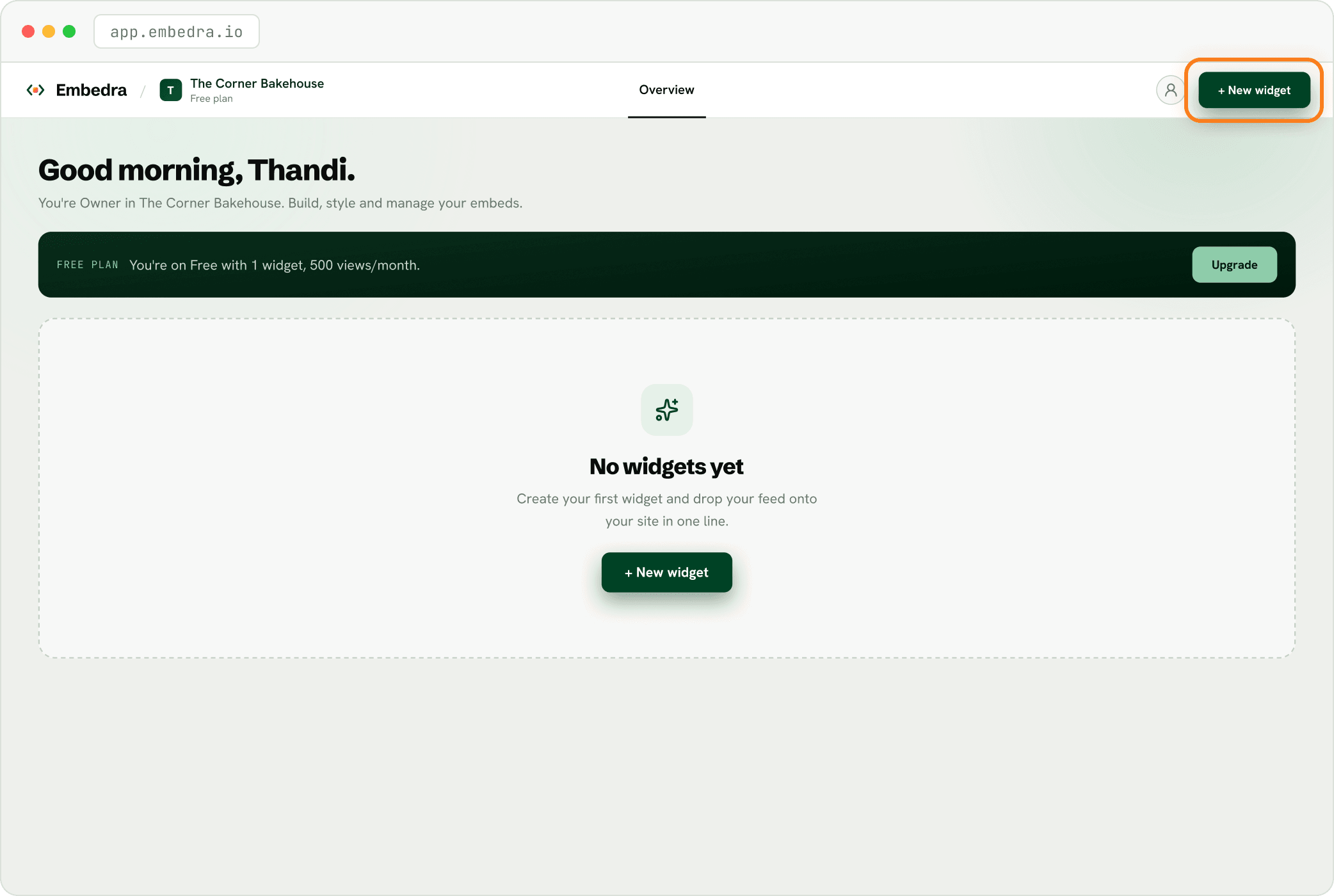
Click "+ New widget"
Sign in at app.embedra.io. On your dashboard, click "+ New widget" at the top. A window called "Add a widget" opens.
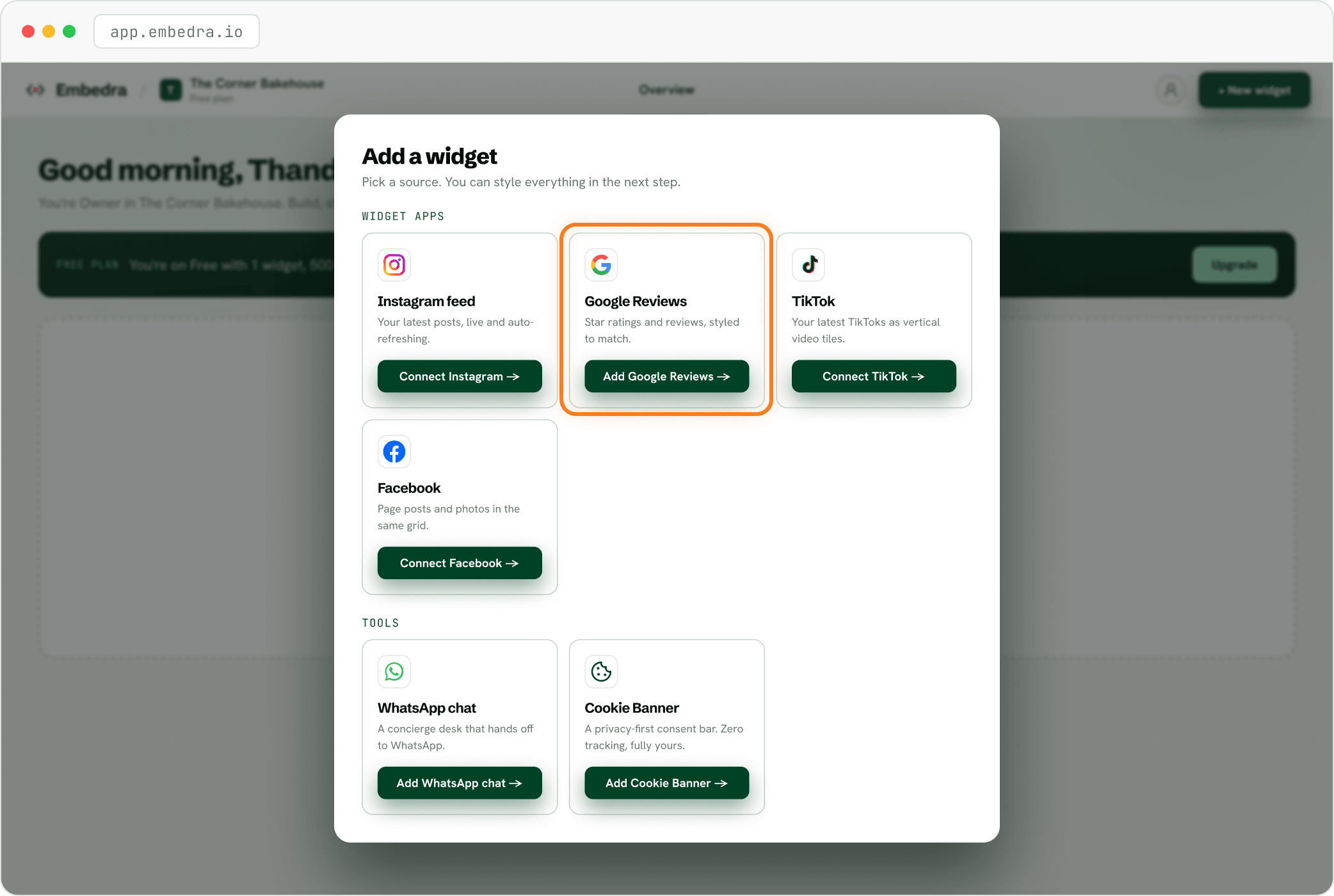
Pick "Google Reviews"
Find the Google Reviews card and click "Add Google Reviews →".
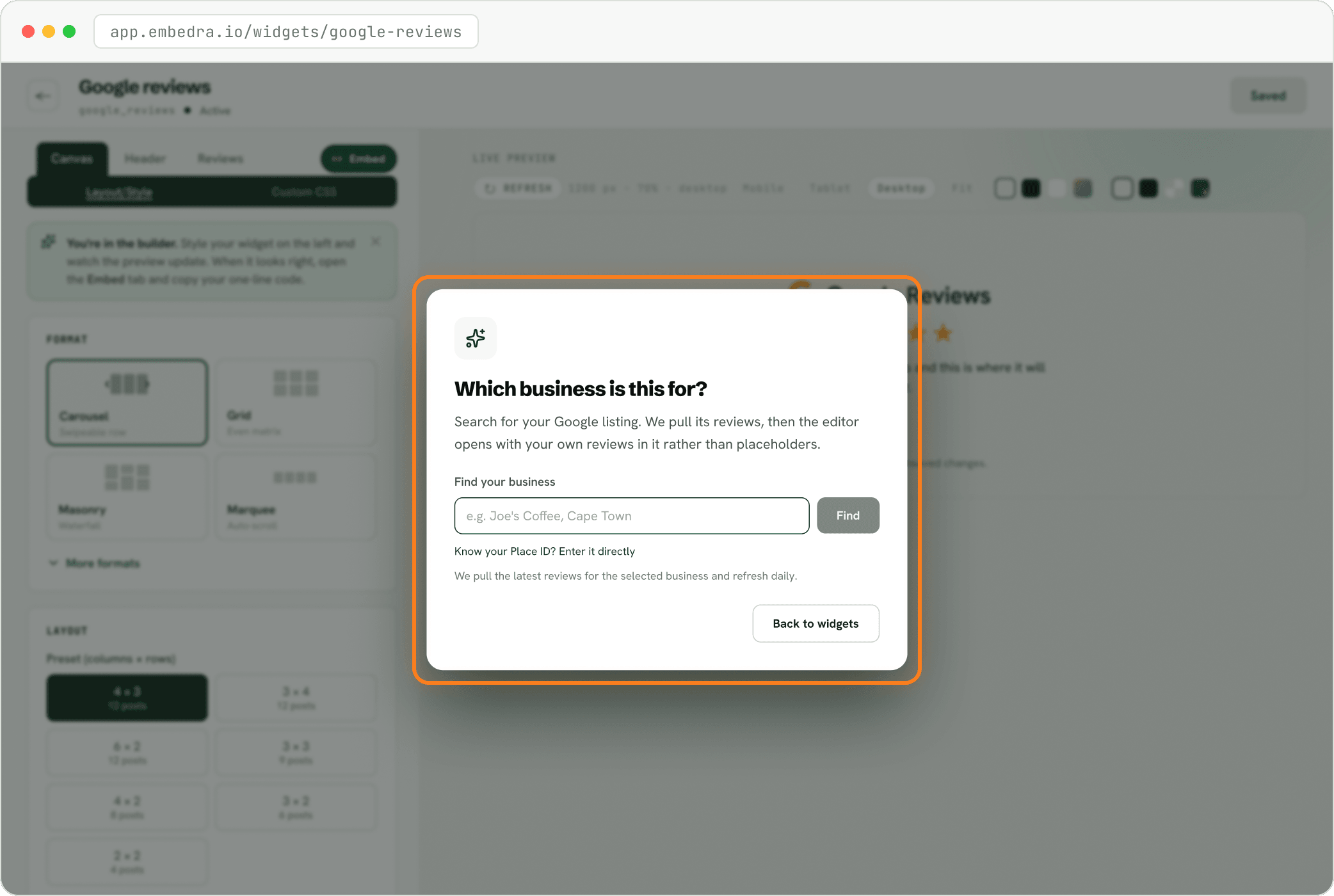
Find your business
The builder asks "Which business is this for?". Type your business name as it appears on Google Maps, then pick it from the list. Embedra pulls its reviews straight away.
- Tip
Not in the list?
Add the town or street after the name, for example "Corner Bakehouse Cape Town". The business has to have a public Google Maps listing.
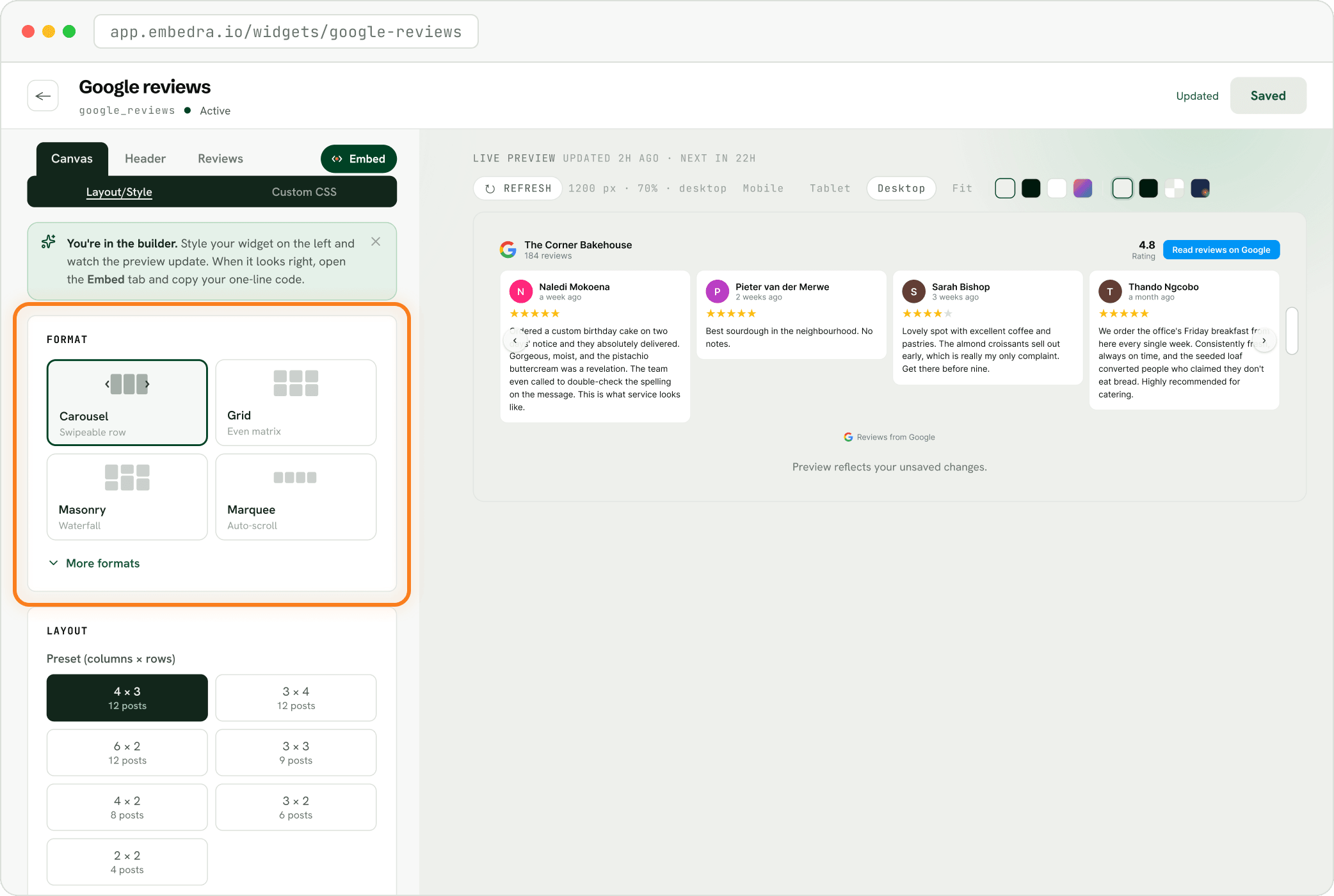
Choose a look
Your own reviews are now in the preview. Under FORMAT, pick a layout, then set the details under LAYOUT. The preview changes as you click.
- Heads up
Why only five reviews?
Google shares up to 5 reviews per business publicly, the ones it ranks as most relevant. Your star rating and review count are always the full totals.
Save, then copy your code
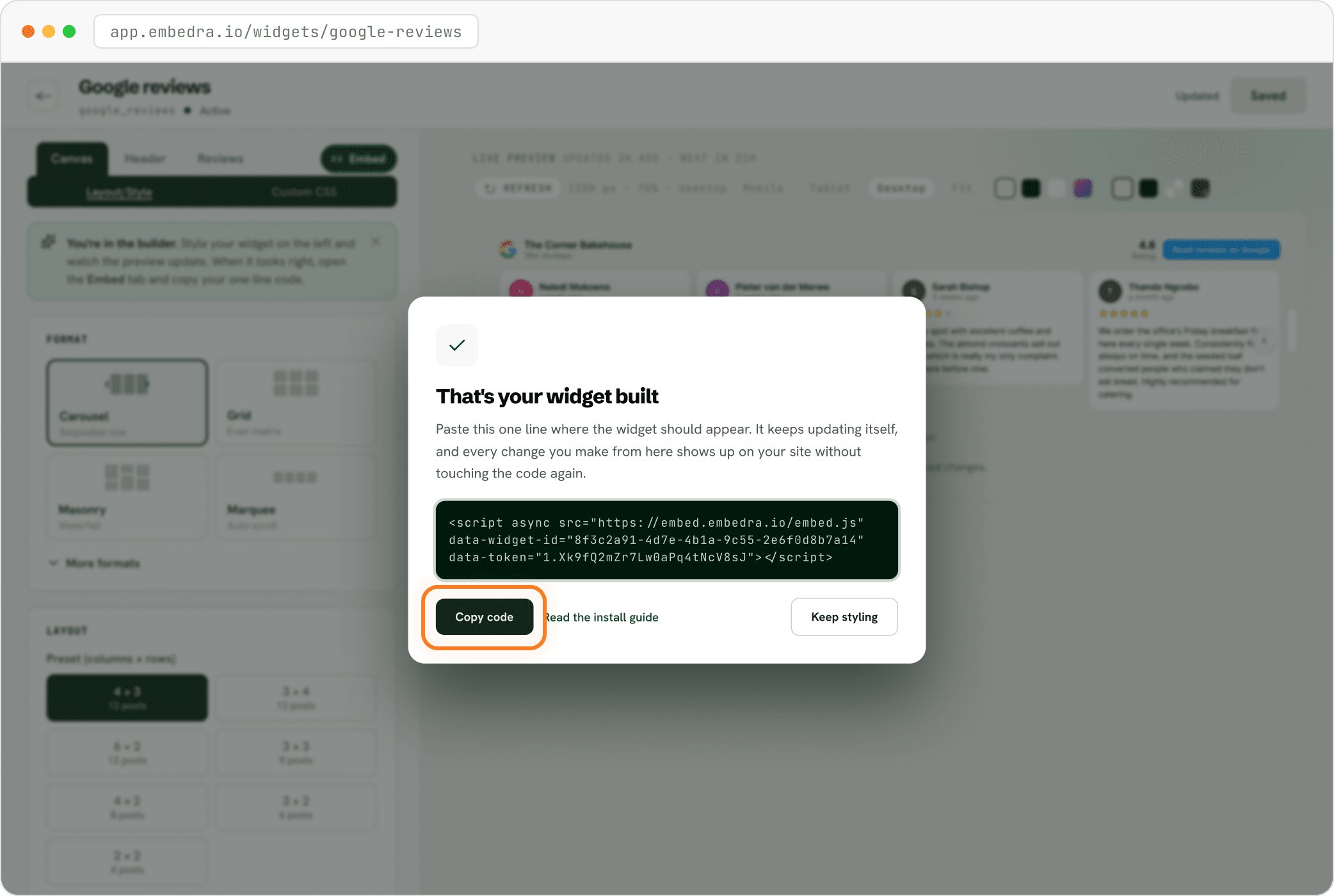
Click "Save changes" at the top right. The first time you save a new widget, "That's your widget built" opens. Click "Copy code": that one line is your whole widget. Next, follow the install guide for your website builder.
NEXT
Add your widget to your website →Where to paste your code in WordPress, Shopify, Webflow, Framer, Wix and more.
Stuck on a step? Email support@embedra.io. A real person replies.