INSTALL GUIDES · SQUARESPACE
Add your widget to Squarespace
Use a Code block for a feed, or Code Injection for a cookie banner or chat button on every page. Code needs a plan that allows it (Core, Plus or Advanced; code blocks also work on Business and Commerce plans). About 3 minutes.
Copy your code
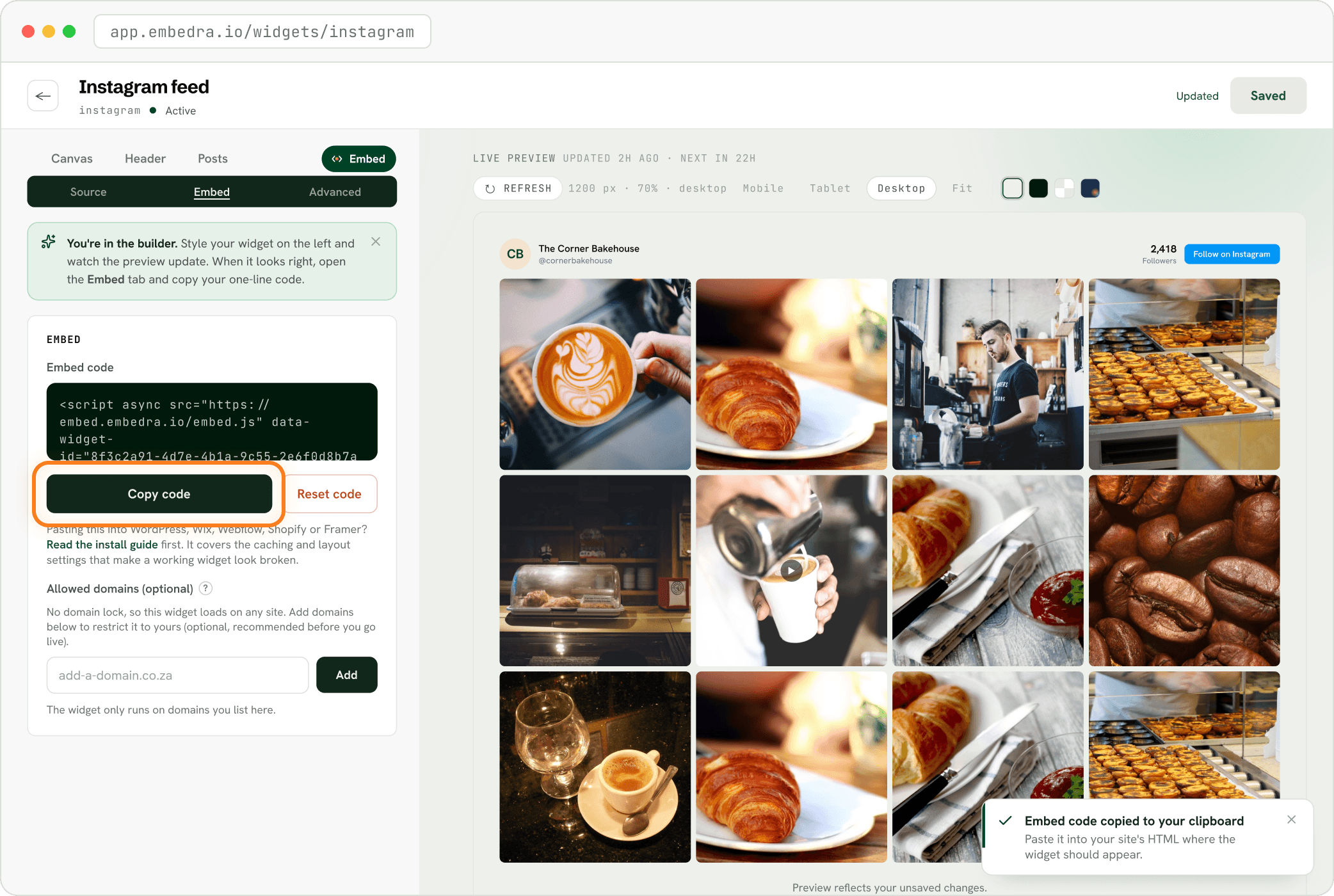
In Embedra, open your widget, click the Embed pill, then "Copy code". It already carries your widget's ID, so there is nothing to fill in.
On one page
For feeds: Instagram, Facebook, TikTok, YouTube and Google Reviews. The widget appears exactly where you paste the code.
Add a Code block and paste
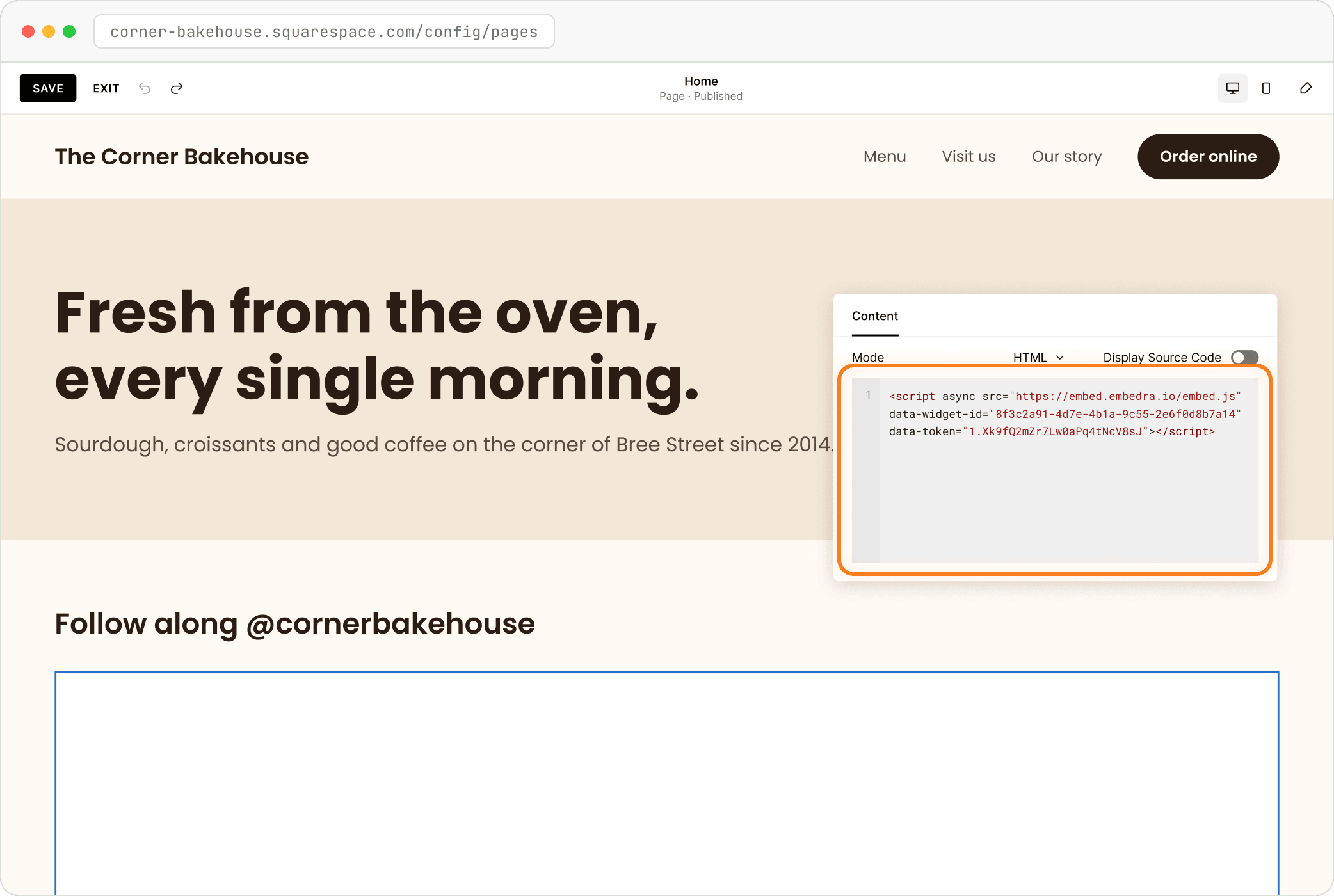
Open the page and click "Edit". Click "Add Block" and choose "Code". Click the pencil on the block, keep Mode on HTML, leave "Display Source Code" off and paste your code. Click Save, then Exit.
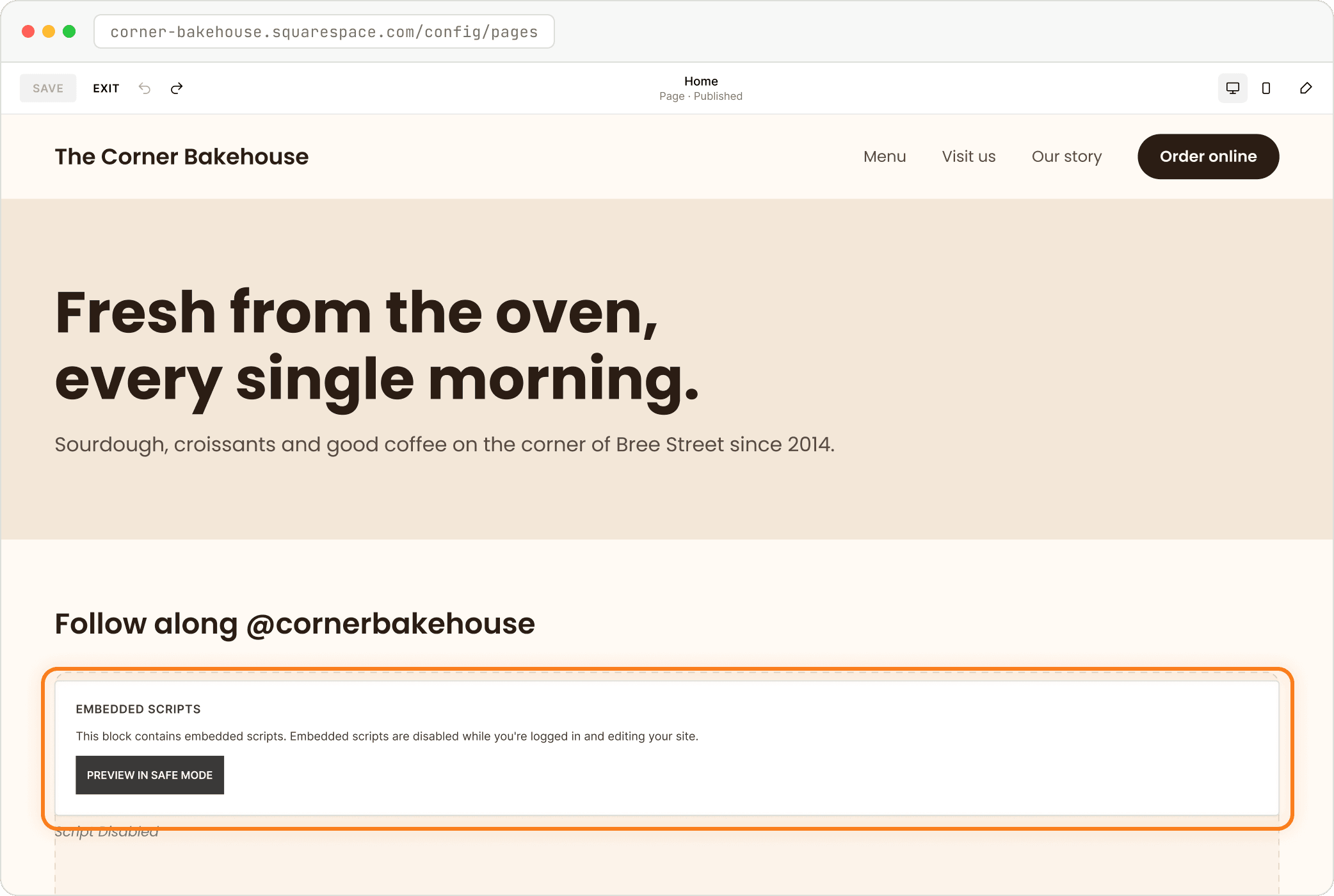
"EMBEDDED SCRIPTS" is normal
While you are logged in, Squarespace switches code off and shows this box instead. Check your live page in a private window to see the widget.
On every page
For tools that float over your site: Cookie Banner and WhatsApp chat. Paste once, at the end of the page, and it shows on every page.
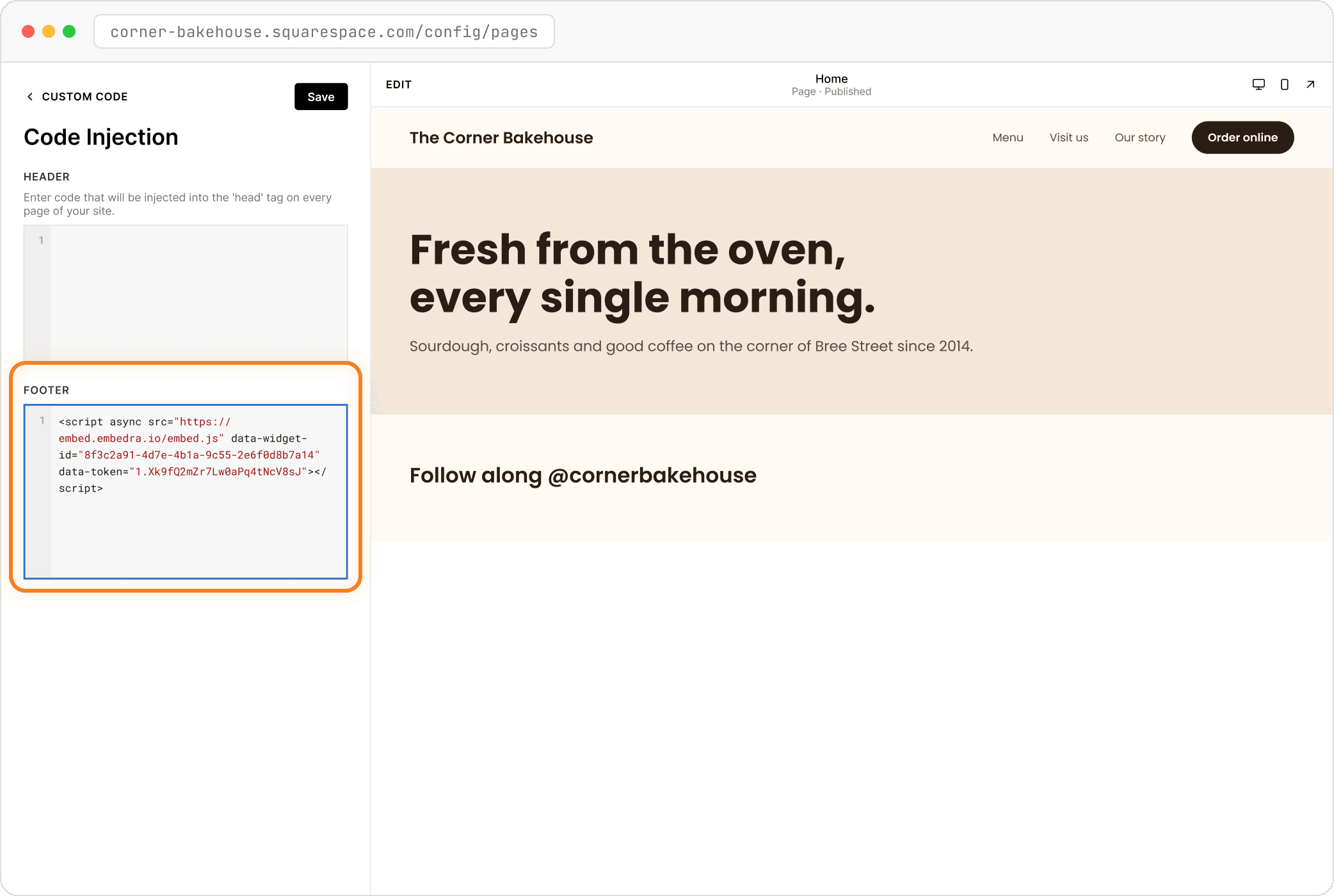
Paste into Code Injection, Footer
Open the Pages panel and scroll to the bottom. Click "Custom Code", then "Code Injection". Paste your code into Footer and click "Save".
- Tip
Check it like a visitor
Open your live site in a private (incognito) window. That shows exactly what your visitors see, without your login or your browser's saved copy.
NEXT
Create another widget →Instagram, Facebook, TikTok, Google Reviews, Cookie Banner and WhatsApp chat, each in a few minutes.
Something on this page does not match what you see? Email support@embedra.io. A real person replies.